How to Mass Upload Products to Shopify Using Barcodes
If you run a brick and mortar store and want to bring your inventory online, you don't have to do it one product at a time. Here's how to go from a spreadsheet of barcodes to a live Shopify store.
If you run a brick and mortar store and want to bring your inventory online fast, you're probably staring at a stockroom full of products and wondering how long it's going to take to get them all listed. The short answer, without the right workflow, is a very long time.
Manual product entry on Shopify is slow. You look up each item, write a title, put together a description, photograph it, upload the image, set the price, and move on to the next one. Multiply that by a few hundred products and you've got a project that takes weeks, not days.
The faster approach starts with something you likely already have: the barcodes on your products. Here's how to use them.
What the CSV upload workflow actually does
Scan2Sell is a Shopify app built for physical retail. The CSV upload feature is designed specifically for merchants who need to get a large number of products online without doing each one by hand.
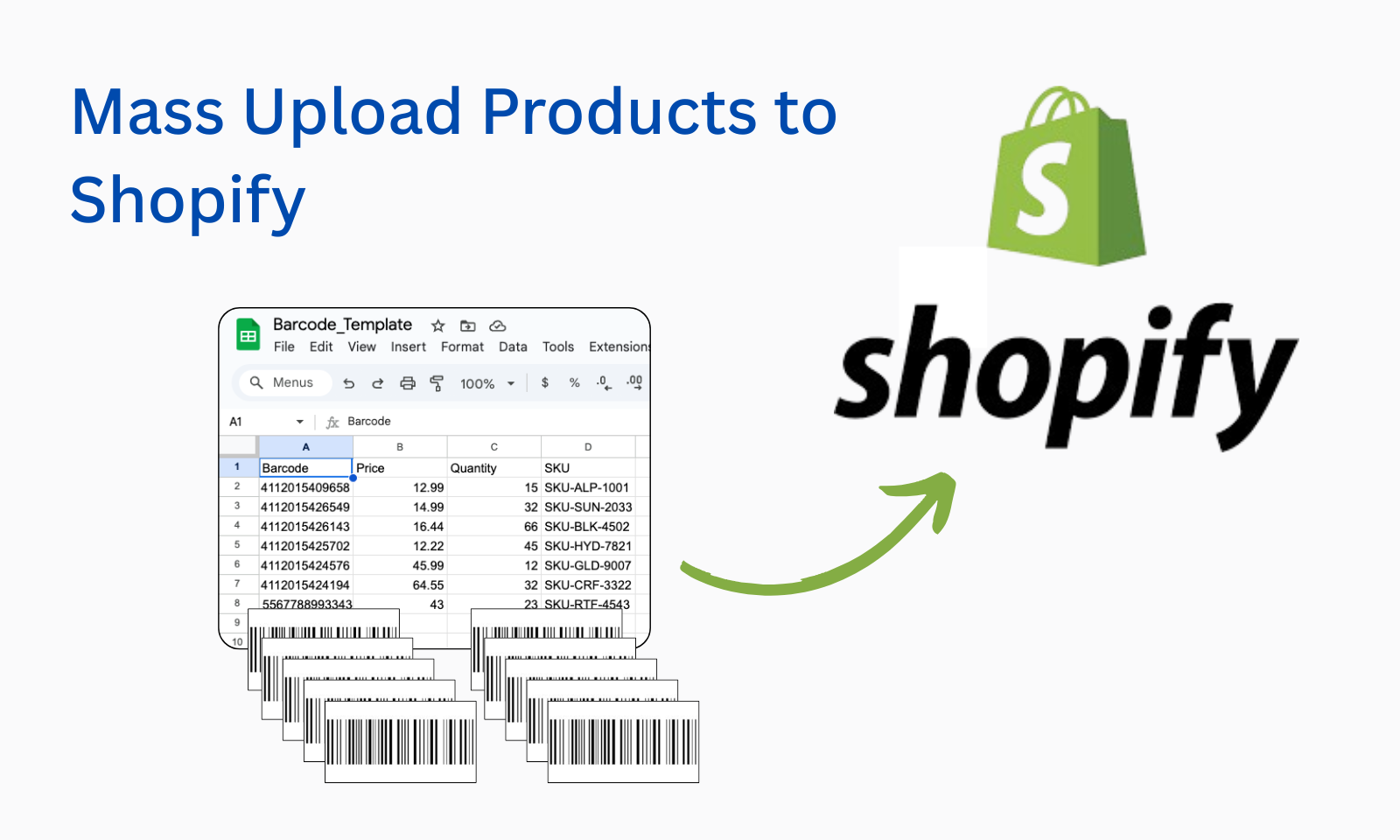
You provide four pieces of information per product — the barcode, a SKU, your price, and your quantity. That's it. From that input, structured product listings appear. Titles, descriptions, category details, and product images are all generated from the barcode data. You review each listing, make any edits you want, and publish to Shopify.
No writing product descriptions from scratch. No hunting for product photos. No reformatting spreadsheets to match Shopify's own CSV template requirements.
The barcode already contains the product identity. The CSV upload is just the fastest way to hand that information to Scan2Sell in bulk.
Step-by-step: how to mass upload using a CSV
From spreadsheet to live Shopify listings — here is exactly how the process works.
Step 1: Download Scan2Sell's CSV template
Inside the Scan2Sell app, download the CSV template. It is a straightforward file with four columns: Barcode, SKU, Price, and Quantity. No extra formatting, no complex field mapping required.
Step 2: Fill in your product information
Enter your barcodes, SKUs, prices, and stock quantities. You can pull barcodes from your vendor's product sheets, scan them from your shelf using a phone or Bluetooth handheld scanner, or copy them from an existing inventory spreadsheet.
Step 3: Upload the file into Scan2Sell
Drag and drop your completed CSV into the app and hit Import. Scan2Sell processes each barcode in the file and structured product listings begin to appear — one for each entry in your spreadsheet.
Step 4: Review and publish to Shopify
Go through each listing. The title, description, category, and product images are already there. Make any edits you want — add condition notes, adjust wording, confirm the details — then publish. Your products appear in your Shopify dashboard ready to go live.
The CSV template has four columns. Nothing more is required from you to get started.
What goes in the CSV template
Barcode
The UPC or EAN barcode from the product packaging. This is what Scan2Sell uses to generate the listing.
SKU
Your internal stock-keeping reference. Can match your existing system or be left as a simple identifier.
Price
The price you want to sell the product for in your Shopify store. You set this — Scan2Sell does not price items for you.
Quantity
How many units you have in stock. Used to set inventory levels in Shopify when the listing is published.
What happens when a barcode doesn't return results
Not every barcode will have product data attached to it. Older items, regional brands, or very niche products sometimes return nothing when scanned. When that happens you have two options.
You can take a photo of the product instead. Scan2Sell uses the image as a reference to help structure a listing draft — title, category, and description are generated from the visual input. It takes a little longer than a barcode match, but it's still faster than starting from a blank product form.
For items where neither the barcode nor a photo gives you enough to work with, you can fill in the details manually directly inside the app before publishing.
When to use CSV upload versus scanning individually
If you're standing at a shelf with products in hand and moving quickly through stock, scanning one at a time with your phone camera or a Bluetooth handheld scanner is the natural workflow. You pick up a product, scan it, review the listing, set your price, and move on.
The CSV upload makes more sense when you already have product data in a spreadsheet — vendor sheets, a prior inventory system, or a list of barcodes you've compiled separately. Instead of scanning each product again, you hand the whole file to Scan2Sell at once and let it process the batch.
Both routes end up in the same place: a reviewed, editable listing in Scan2Sell that you approve before anything goes live on Shopify.
Works with Shopify POS too
If you're running a physical store on Shopify POS alongside your online store, Scan2Sell integrates directly. You can scan from your in-store environment and build online listings without switching between systems. Your in-store and online inventory stays in one place, managed from the same workflow.
Frequently asked questions
Common questions about mass uploading products to Shopify using barcodes and CSV files.
Where do I get the CSV template?
The template is available inside the Scan2Sell app. Download it directly from there — it has four columns (Barcode, SKU, Price, Quantity) and is ready to fill in straight away. Do not use Shopify's own product CSV template as it has a different structure.
What barcode formats does Scan2Sell support?
Standard retail barcodes including UPC, ISBN, and EAN formats. If the barcode is on the product packaging and readable, it will scan to beging the process. For products where the barcode is damaged or missing, you can use the photo input instead.
Do I need a barcode scanner or will my phone work?
Your phone camera works as the scanner for individual product scanning. If you are processing high volumes and want faster throughput, a Bluetooth handheld scanner is supported and can speed up the scanning stage considerably. For CSV uploads, no scanner is needed at all — you just need the barcode numbers in your spreadsheet.
Can I edit the listings before they go live?
Yes — every listing is reviewable and editable before anything publishes. You can update the title, description, category, images, price, and quantity on each one. Nothing goes live on Shopify until you approve it.
Is there a limit to how many products I can upload at once?
Scan2Sell is $99 per month with unlimited scans and CSV uploads. There is no per-product fee and no cap on the number of products you can process in a single session or across the month.
Ready to get your store online faster?
Scan2Sell is $99 a month with unlimited scans and CSV uploads. Download the template and start listing today.
Get Scan2Sell on Shopify