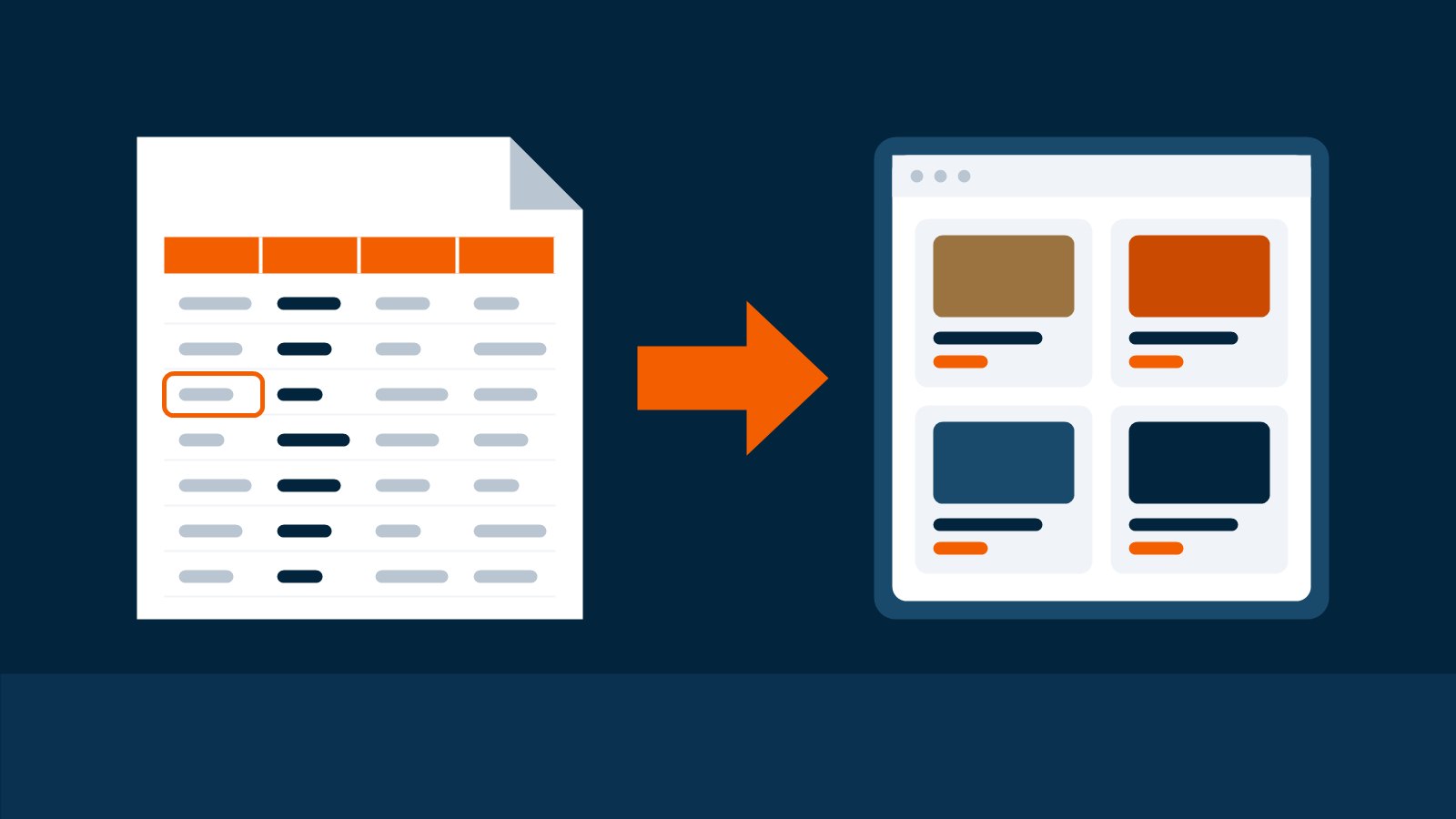
A Shopify CSV import lets you add or update many products at once from a spreadsheet. You fill in Shopify's product CSV template, one row per product, variant or image, save it as a CSV file, then upload it from Products > Import in your Shopify admin. Only the product title is required, but the more columns you fill in, the less you have to fix by hand afterwards.
This guide covers the current Shopify CSV format, a filled-in template you can copy, the import steps, and the errors that stop most imports.
The Shopify product CSV format
A CSV file is a plain spreadsheet saved as text, with commas between the values. The first row holds the column names, and every row after that is a product, a variant or an extra image.
These are the columns most stores use. Shopify's CSV format page lists every column, including Google Shopping, market pricing and metafield columns.
| Column | Required | Example value |
|---|---|---|
| Title | Yes, for a new product | Ceramic Coffee Mug 12oz |
| URL handle | Yes, to update a product or add variants | ceramic-coffee-mug-12oz |
| Description | No | Stoneware mug, dishwasher safe. |
| Vendor | No | Brightside Pottery |
| Product category | No | Apparel & Accessories > Clothing > Clothing Tops > T-Shirts |
| Type | No | Mug |
| Tags | No | kitchen, gifts, new |
| Published on online store | No | TRUE |
| Status | No | active, draft or archived |
| SKU | No | MUG-12-WHT |
| Variant Barcodes | No | upc:012345678905 |
| Option1 name | No | Size |
| Option1 value | No | Large |
| Price | No | 14.99 |
| Compare-at price | No | 19.99 |
| Cost per item | No | 6.50 |
| Inventory tracker | No | shopify |
| Inventory quantity | No | 24 |
| Continue selling when out of stock | No | DENY or CONTINUE |
| Weight value (grams) | No | 350 |
| Product image URL | No | https://example.com/mug.jpg |
| Image position | No | 1 |
| Image alt text | No | White ceramic mug on a wooden table |
| SEO title | No | 12oz Ceramic Coffee Mug, Dishwasher Safe |
| SEO description | No | A sturdy stoneware mug for everyday coffee. |
A few rules that trip people up:
- Product category must match Shopify's own category list exactly, or the import fails with "Not a valid product category." Copy it from Shopify rather than typing your own.
- URL handle is the product's ID in Shopify and the end of its web address. Use lowercase letters, numbers and dashes, with no spaces. If you leave it blank on a new product, Shopify makes one from the title.
- Variant Barcodes takes a type, a colon and the number, like
upc:036000291452orean:4006381333931. Separate more than one barcode with a semicolon. A barcode with no type imports as a custom barcode. - Status decides whether the product is live. If you leave the column out, products import as active. If you include it, every row needs a value.
- Inventory quantity only works for stores with one location. Stores with several locations update stock with Shopify's separate inventory CSV.
- Price is a number only, with no currency symbol.
Old column names
Shopify renamed many columns in its current template. Older exports and most guides online still use the old names. They describe the same information:
| Old name | Current name |
|---|---|
| Handle | URL handle |
| Body (HTML) | Description |
| Variant SKU | SKU |
| Variant Barcode | Variant Barcodes |
| Variant Price | Price |
| Variant Inventory Qty | Inventory quantity |
| Variant Grams | Weight value (grams) |
| Image Src | Product image URL |
Use one set of names in a file, not a mix. A file that has both the old and new barcode columns will not import.
The Shopify CSV template
Start from Shopify's own sample product CSV. You can also get it from the Download sample CSV link in Shopify's import window. It has every column header in the right order, plus example products. Delete the example rows before you add your own.
Here is a filled-in example with three products, showing only the columns that change. It covers the three row patterns you will use most:
| Title | URL handle | Status | Variant Barcodes | Option1 name | Option1 value | Price | Inventory quantity | Product image URL | Image position |
|---|---|---|---|---|---|---|---|---|---|
| Ceramic Coffee Mug 12oz | ceramic-coffee-mug-12oz | active | upc:012345678905 | Title | Default Title | 14.99 | 24 | https://example.com/mug.jpg | 1 |
| Canvas Tote Bag | canvas-tote-bag | active | upc:036000291452 | Size | Small | 18.00 | 10 | https://example.com/tote.jpg | 1 |
| canvas-tote-bag | upc:036000291469 | Large | 22.00 | 6 | |||||
| Lavender Soy Candle | lavender-soy-candle | draft | upc:012345678912 | Title | Default Title | 12.50 | 30 | https://example.com/candle-front.jpg | 1 |
| lavender-soy-candle | https://example.com/candle-back.jpg | 2 |
- A simple product (the mug) takes one row. A product with no options uses "Title" as the option name and "Default Title" as the value.
- A product with sizes (the tote) uses one row per variant. The first row holds the product details. Each extra row repeats the exact same URL handle and fills in only the variant: its option value, barcode, price and stock. Leave Title, Description, Vendor and Tags blank on those rows.
- A product with more than one photo (the candle) uses one extra row per photo, with the URL handle, the image link and its position.
How to import products to Shopify
- In your Shopify admin, go to Products and click Import at the top of the page.
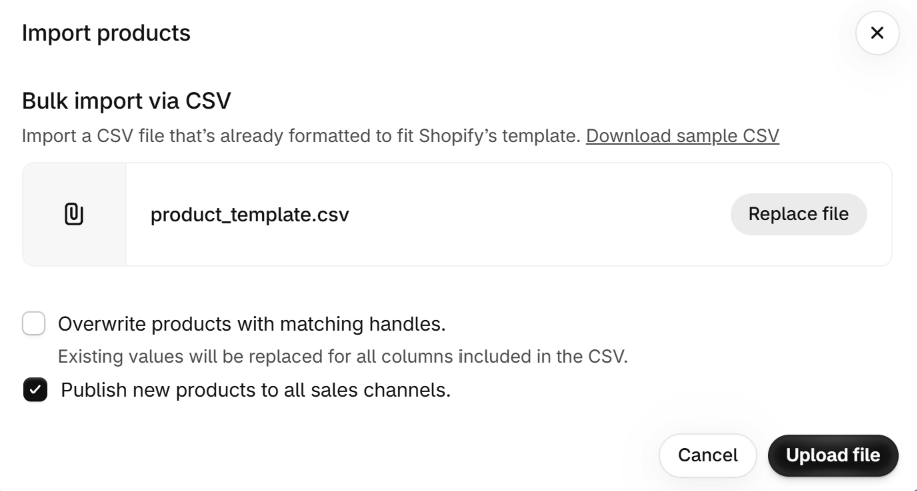
- Under Bulk import via CSV, click Upload file and choose your CSV.
- Choose your options. Overwrite products with matching handles is off at first. Turn it on only if you want to update products already in your store. Publish new products to all sales channels is on at first. Turn it off if you only want new products on your online store.
- Click Upload file.
- Check the preview. Shopify shows how many products, SKUs and images it found, plus your first product's details. If the details look mixed up, use the change the order of column headings link to fix them.
- Click Import products.
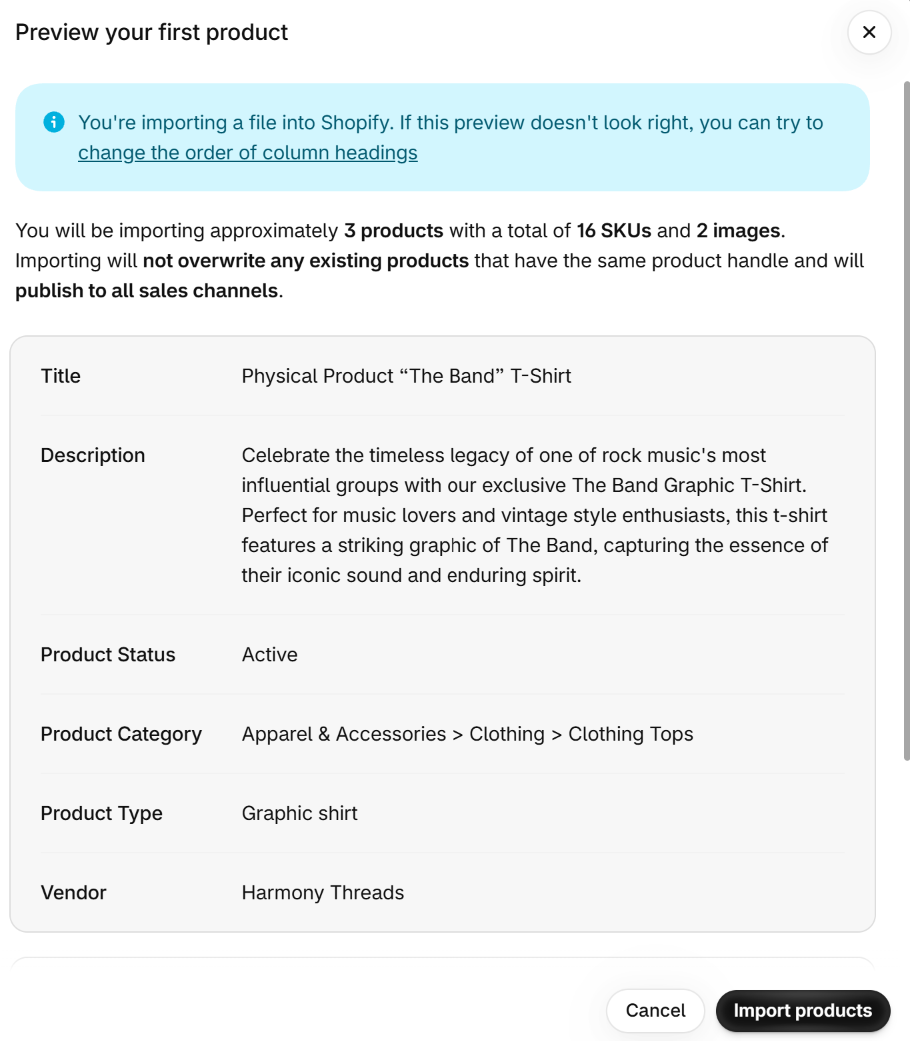
The import keeps running if you close the window, so you can carry on working. Shopify also sends you a confirmation email.
Moving from another platform? The same Import window lists apps for importing from Etsy, TikTok, Square, Amazon, eBay, Wix, Squarespace and GoDaddy, so you may not need to build a CSV at all.
Know what the overwrite option does before you tick it. Shopify's wording is "Existing values will be replaced for all columns included in the CSV." A blank cell in your file clears the value that was there. A column you left out of the file keeps the old value. If you don't tick it, products with matching handles are skipped.
Common import errors and how to fix them
Most failed imports come down to a handful of problems. Shopify's common import issues page lists every error message.
Barcodes losing their leading zeros
Many UPC barcodes start with a zero, like 012345678905. Excel treats the barcode as a number and drops the zero, so 012345678905 becomes 12345678905. Long barcodes can also turn into scientific notation, like 1.23457E+11. Some people type an apostrophe in front to keep the zero, and that ' can end up in the saved file. Even Shopify's own sample file does this when you open it in Excel.
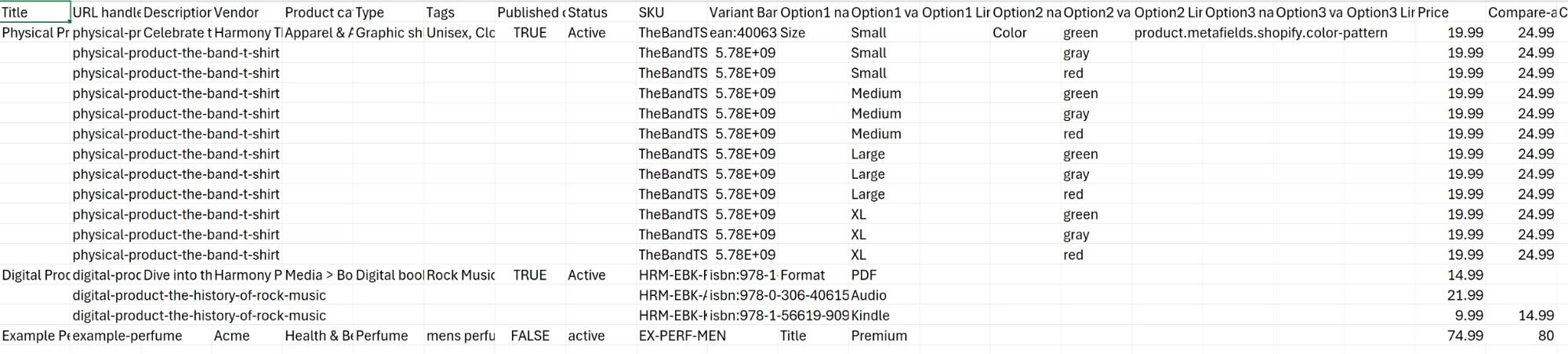
Fix: format the barcode column as Text before you type or paste any barcodes. In Excel, select the column, choose Format Cells, then Text. In Google Sheets, choose Format > Number > Plain text. Google Sheets also saves CSV files in the format Shopify expects, so it is the easier choice.
Variant rows with the wrong URL handle
Every variant row and extra image row must repeat the first row's URL handle exactly, letter for letter. One typo and Shopify treats the row as a different product. Because that row has no title, you get "Ignored line ... because it did not contain product data." Copy the handle down the column instead of retyping it.
The opposite problem shows up as "Ignored line ... because handle ... already exists." Two different products share a handle. Give each product its own.
Image links that don't load
Shopify downloads each image from its link, so the link has to be public and point straight at the image file. Links that need a login, and share links from cloud folders that open a preview page, will fail with "Validation failed: An error occurred while trying to download the image." Open the link in a private browser window. If you see the image on its own, Shopify can use it.
Also avoid sorting the file in Excel or Numbers. Sorting can separate image rows from their products and break the links.
Strange characters and quote errors
If descriptions show odd symbols after import, or you see "Illegal quoting on line", the file was not saved as UTF-8 or it contains curly quotes from Excel. Save the file as "CSV UTF-8", or export it from Google Sheets, and swap any curly quotes for straight ones.
Missing or wrong headers
"Invalid CSV header: missing headers" means the first row does not match Shopify's column names. Headers are case-sensitive, so copy them from the sample file instead of typing them, and check for extra spaces at the end of the row.
Missing prices and stock
"Validation failed: price can't be blank" means a row has no price. "Inventory quantity is not a number" means there is text in the quantity column. Fill in a number on every product and variant row.
Importing a big catalog
A CSV import works for a few products or a few thousand. For a big catalog:
- Keep each file under 15 MB. That is Shopify's limit. If an upload fails or times out, split the file into smaller files with the same header row.
- Test 10 to 20 products first. Check them in your store before you import the rest.
- Export a backup first. Go to Products > Export before any import that overwrites products. An import can't be cancelled or undone once it starts.
- Group variants together. Keep all the rows for one URL handle next to each other, and never split a product across two files.
Don't have the data for the CSV? Scan the barcodes instead
A Shopify CSV assumes you already have a title, description, photos and price for every product. If all you have is shelves of stock with barcodes, filling in those columns is most of the work.
With Scan2Sell, you can scan each product's barcode with your phone or a 2D scanner, and a title, description, category and images appear for you to check. If your barcodes are already in a spreadsheet, Scan2Sell has its own CSV template with just four columns: Barcode, Price, Quantity and SKU. Only the barcode is required. You can upload a .csv or .xlsx file of up to 1,000 rows, and the rest of each listing appears from the barcode.
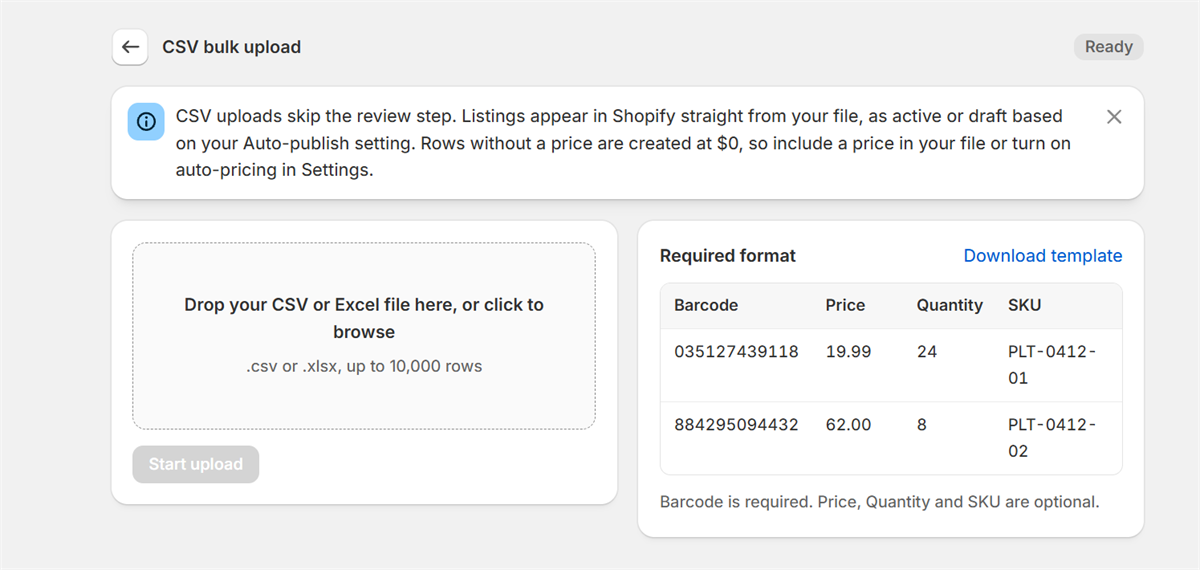
Scan2Sell CSV uploads skip the review step and go straight to Shopify as active or draft, based on your Auto-publish setting, so put a price on every row. CSV bulk upload is part of the Unlimited plan, which is $99 a month with unlimited scans.
Frequently asked questions
What columns are required in a Shopify product CSV?
Only Title is required to create a new product. URL handle is needed to update a product or add variants to it. Every other column is optional.
Where do I get the Shopify CSV template?
Download Shopify's sample product CSV from its help center, or export your existing products from Products > Export and use that file as your template. Delete the example rows before adding your own.
Can I import product images with a CSV?
Yes. Put a public image link in Product image URL, and add one row per extra image with the URL handle and Image position. Shopify downloads each image from the link.
Why did my barcodes lose their first zero?
Excel treats barcodes as numbers and removes leading zeros. Format the barcode column as Text before you enter barcodes, or use Google Sheets.
How many products can I import at once?
Shopify limits each CSV file to 15 MB rather than a set number of products. If your file is bigger, split it into smaller files and import them one at a time.