You have a pallet on the dock and a Shopify store to fill. Here is a workflow that gets mixed inventory listed without the manual grind.
The Liquidation Listing Problem
When a pallet of mixed liquidation stock shows up, the clock starts immediately. You have already paid for the goods. The faster those items are listed, the faster you start recovering that cost. But mixed liquidation inventory is notoriously messy to process: different categories, different brands, some items with barcodes and some without, no manifest that maps cleanly to a Shopify CSV.
Most sellers in this space fall into one of two traps. They either spend days doing manual data entry, writing titles and descriptions from scratch for every item, or they list products so quickly that the listings are thin and incomplete. Neither approach is sustainable once volume picks up.
The better path is building a scan-first workflow that works with the reality of liquidation stock, mixed, fast-moving, and unpredictable.
What Liquidation Inventory Actually Looks Like
If you have only ever bought manifested pallets, where every item is listed with a UPC and condition grade, the workflow is relatively straightforward. But most liquidation stock is not like that. Unmanifested pallets from general merchandise returns can include anything: kitchen appliances, toys, electronics, clothing, tools, and personal care products all in the same box.
Some items will have clean, scannable barcodes. Some will have barcodes that are damaged, peeled, or covered with price stickers. Some will have no barcode at all, either because the product is unbranded, store-branded, or the packaging is missing entirely.
A workflow built for liquidation needs to handle all three of these cases without grinding to a halt every time something does not scan cleanly.
The pallet does not care about your spreadsheet. Your listing workflow has to be flexible enough to handle whatever comes off the truck.
Building Your Off-the-Truck Scanning Workflow
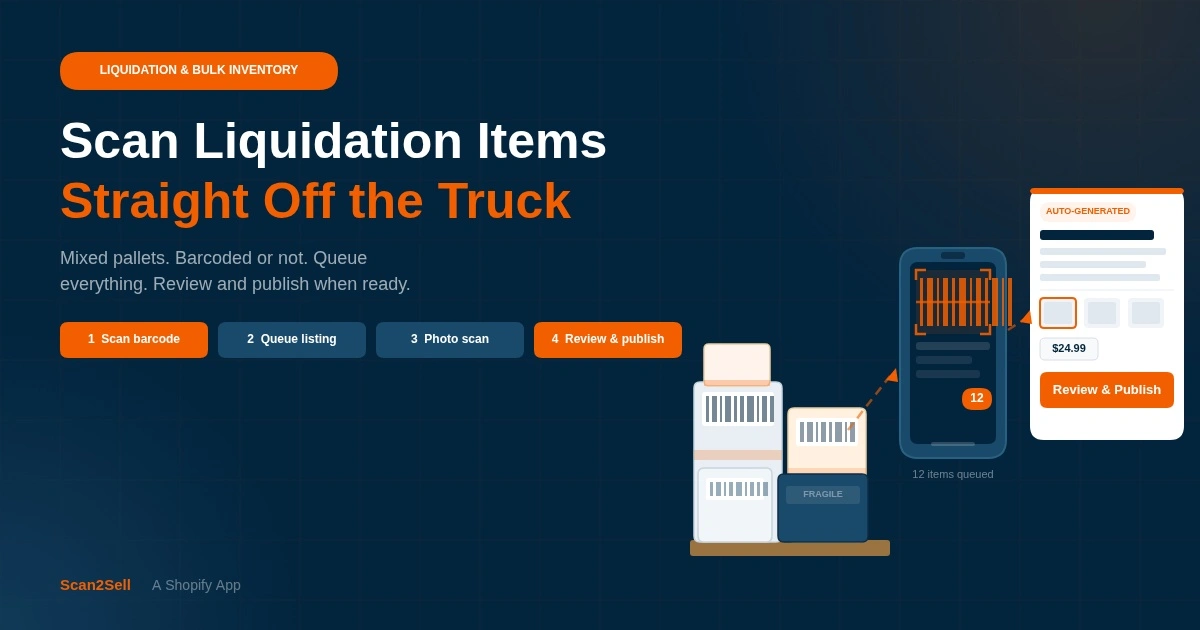
The goal is to move through items quickly, capture enough information to generate a usable listing, and review in batches rather than item by item. Here is how that works in practice with Scan2Sell.
1
Set up before the truck arrives
Have Scan2Sell open on your phone and a Bluetooth scanner paired if you are using one. You do not need a table set up or a laptop running. The entire intake workflow runs from your phone, which means you can scan while items are still coming off the truck.
2
Scan barcoded items first
Point your phone camera or Bluetooth scanner at the barcode. A structured product listing appears with a suggested title, description, category, and product images as part of the output. Add your price and quantity, then queue it for review. Do not stop to review every listing in the moment. Keep moving through the inventory.
3
Photo scan items with no barcode
When a barcode is missing, damaged, or the item arrived without packaging, switch to photo mode. Take a photo of the product and a listing is generated from the image. It will not always be perfect, but it gives you a structured starting point that is faster than writing from scratch, and you can edit before publishing.
4
Use Scan Queue to batch your intake
Scan Queue lets you move through an entire pallet without stopping to review each listing individually. You scan, queue, scan, queue, and then review the full batch once the physical intake is done. This separates the physical work from the listing work, which is the single biggest efficiency gain for high-volume liquidation.
5
Review, price, and publish
Once intake is done, sit down with your queued listings. Check titles, adjust descriptions for condition notes if needed, confirm prices, and publish. Nothing goes live in your Shopify store until you approve it. The review step is where you add the nuance that matters for used or returned goods.
What to Do With Items That Have a UPC but No Match
Occasionally you will scan a barcode and the listing that appears is thin or incorrect. This happens more often with store-brand products, regional items, or goods that were sold in international markets and carry a different UPC to the same product sold domestically.
When this happens, treat it like a no-barcode item. Switch to photo mode, take a clear photo of the product, and use the generated listing as your base.
When It Makes Sense to Use a Bluetooth Scanner
Your phone camera handles barcode scanning well for moderate volumes. But if you are regularly processing pallets of 200 or more items, a Bluetooth handheld scanner makes the physical intake significantly faster. The scanner reads barcodes more reliably on shiny, curved, or worn packaging, and you can scan one-handed while sorting product with the other.
Any Bluetooth HID mode scanner will pair with your phone and work alongside Scan2Sell. You do not need Shopify-specific hardware. Mid-range options from brands like Zebra, Honeywell, or Socket Mobile are reliable and will outlast budget alternatives under daily use.
What About High-Volume Pallets With Known Barcodes?
If you receive a manifested pallet where you already have a list of barcodes, the CSV upload workflow in Scan2Sell removes the need to scan physically at all. Download the Scan2Sell CSV template, enter the barcodes from your manifest, and upload the file back into the app. Listings are generated from the barcode data in bulk. You still review and publish, but the intake step is done in a spreadsheet rather than on the dock.
This works well for repeat suppliers where you get the same type of inventory regularly, or for lots where you receive the manifest before the truck arrives and want to have listings staged before the goods even land.
Phone or Bluetooth Scan
Scan with your phone camera or a paired Bluetooth HID scanner. A structured listing appears immediately with title, description, category, and product images as part of the output. Queue it and keep moving.
Photo-Based Listing
Take a photo of any item without a barcode. A listing is generated from the image. Useful for unpackaged goods, store-brand products, or anything that arrived without a scannable label.
Scan Queue
Scan an entire pallet and queue every listing without stopping to review. Once intake is done, review and publish in a single batch session. Separates physical handling from listing work.
CSV Barcode Upload
Have a list of barcodes from your supplier? Download the Scan2Sell CSV template, enter your barcodes, and upload. Listings are generated at scale from the file without physical scanning.
Pricing Liquidation Items Quickly
Liquidation pricing is its own skill, but a few things make it faster when you are working through a mixed pallet. If you know your cost per item from the pallet price divided by item count, set a target multiple before you start scanning. Having a default price range in mind means you are not stopping to research every item at intake. You can always adjust during the review step once listings are generated.
For categories you know well, pricing goes quickly. For items outside your usual categories, a fast check against eBay sold listings or Amazon current pricing during review gives you a reasonable anchor without derailing the whole session.
Intake and pricing are two different jobs. Keeping them separate is what lets you move through a pallet in one session instead of two days.
Condition Notes and Listing Accuracy
Liquidation stock is returned, shelf-pulled, or overstocked goods. The generated listing reflects the product as it was manufactured, not the condition of your specific unit. During your review step, this is where you add condition notes: open box, minor cosmetic damage, missing accessories, tested and working, and so on.
Accurate condition notes reduce returns and disputes, which matters more for liquidation sellers than for new goods retailers. Buyers purchasing liquidation stock expect some variance, but they do not expect surprises. A single sentence in the description covering the item's condition is enough to set the right expectation.
Frequently Asked Questions
Can I scan liquidation items that have no barcodes?
Yes. Scan2Sell includes a photo-based listing option for items without a scannable barcode. Take a photo of the product and a listing is generated from the image. You can edit the details before publishing, which is useful for adding condition notes or correcting any details that do not match your specific unit.
What is Scan Queue and how does it help with pallets?
Scan Queue is a feature in Scan2Sell that lets you scan multiple items in a row and hold them in a queue for batch review later. Instead of reviewing each listing the moment it is generated, you scan through the entire pallet first and then sit down to review, price, and publish all at once. It separates the physical intake step from the listing work, which is the main efficiency gain for liquidation workflows.
Do I need a special barcode scanner for liquidation inventory?
No. Your phone camera works for barcode scanning and is sufficient for most volumes. If you are processing large pallets regularly, a Bluetooth HID barcode scanner speeds up intake and handles damaged or shiny packaging more reliably. Any standard Bluetooth HID scanner will pair with your phone and work alongside Scan2Sell. You do not need Shopify-branded hardware.
Can I upload a barcode list from a supplier manifest instead of scanning each item?
Yes. Scan2Sell supports CSV uploads for bulk listing creation. Download the Scan2Sell CSV template, add your barcodes from the manifest, and upload the file. Listings are generated from the barcode data in the spreadsheet, so you can have listings staged before the goods even arrive if you receive the manifest in advance.
Does Scan2Sell publish listings automatically?
No. Every listing requires your review and approval before it goes live in your Shopify store. This is especially important for liquidation stock where condition notes need to be added and pricing needs to be confirmed. Nothing publishes without you approving it.
From Dock to Shopify, Without the Manual Grind
Scan2Sell is $99 a month with unlimited scans. Works with your phone camera, a Bluetooth scanner, or a CSV barcode upload from your supplier manifest.
Get Scan2Sell on Shopify