

You just got your brick and mortar store running, now you want to move online. What if you could use your scanner gun to scan product barcodes and quickly create listings for your online store? Here's how you do it 👇
First, Disconnect your scanner gun
A Bluetooth barcode scanner cannot be connected to more than one endpoint at a time. That means if it's already connected to your POS system, it won’t be able to communicate with your smartphone or mobile apps like Scan2Sell. To successfully switch your scanner over, you need to disconnect it completely from the POS and properly reset and pair it with your phone. You also must ensure the scanner is not plugged into USB while attempting to pair—it needs to be in wireless mode.
Step-by-Step: Disconnect & Reconnect Your Bluetooth Scanner
1. Unpair from the POS System
Open your POS software:
- Navigate to Settings > Hardware (or Devices).
- Select your scanner and choose Forget Device or Disconnect.
- Turn Bluetooth OFF on the POS system to prevent automatic reconnection.
2. Download the Companion App (If Required)
- Many scanners have an official companion or setup app.
- Use the QR code in your programming/setup guide to download the app.
- The app will help you test, update, or switch Bluetooth modes for compatibility.
3. Enable Bluetooth Pairing Mode from the User Guide
- Open the User Guide or Programming Guide that came with your Bluetooth scanner.
- Locate the page labeled "Bluetooth Pairing Mode" or similar.
- Scan the barcode associated with that mode to activate pairing.
- This step ensures your scanner is ready to be discovered by your smartphone during Bluetooth setup.
4. Pair with Your Smartphone
Open Settings → Bluetooth on your smartphone Select your scanner from the list of available devices Confirm the connection
5. Confirm Scanner Input in Your App
- Open your mobile app (e.g. a barcode scanning or retail app).
- Tap into a text or SKU input field.
- Scan a barcode to test. If the barcode appears as text, the scanner is working correctly.
Need to Use the On-Screen Keyboard Too?
When a Bluetooth scanner is connected, your phone may disable the on-screen keyboard. To bring it back up:
- Tap into a text field
- Then double-click the trigger button on your bluetooth scanner to enable the keyboard and enable text inputs.
Reminder
A Bluetooth scanner cannot be paired with two devices at once. Always unpair it from your POS before attempting to use it with another app or smartphone.
Specifics for S720:
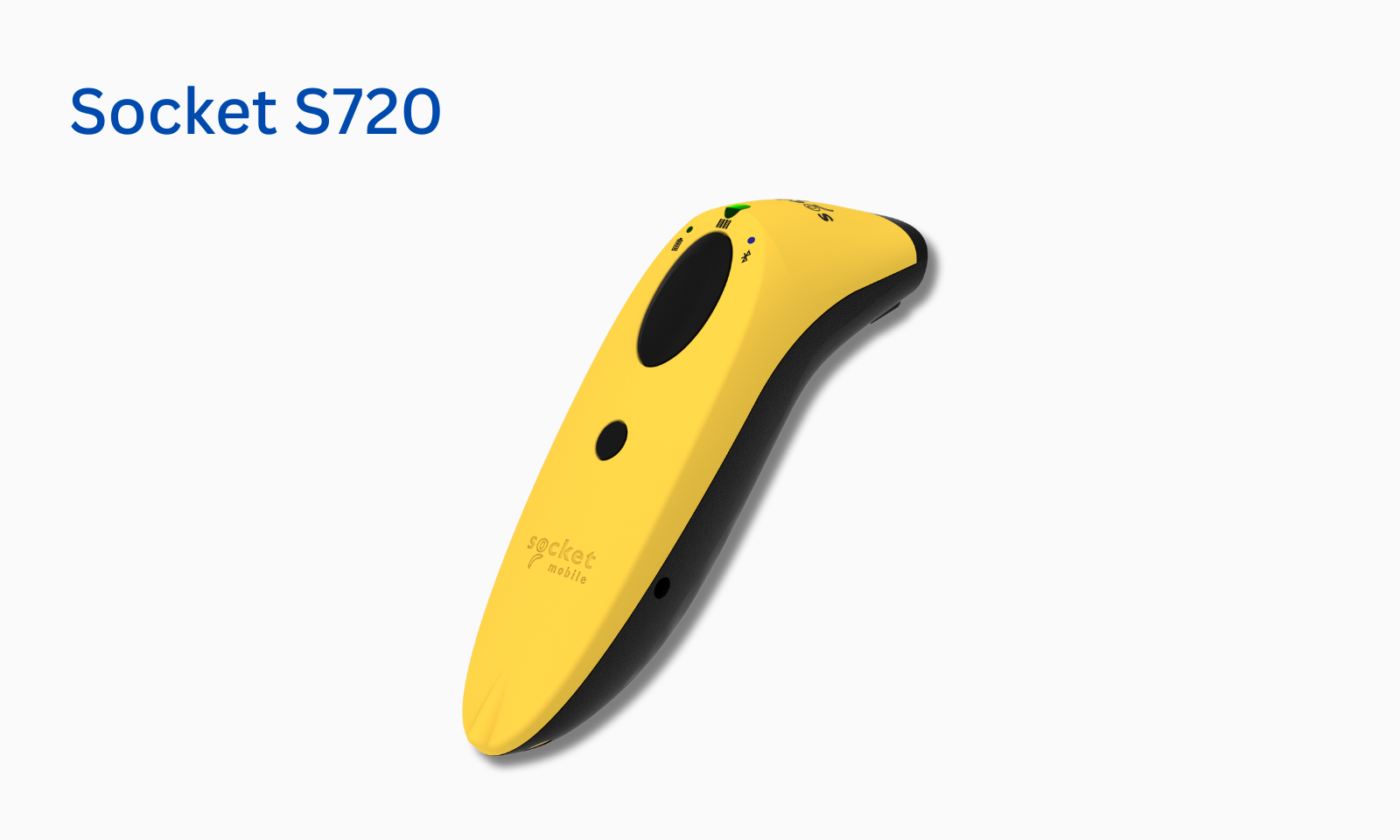
The Socket Mobile S720 has a few unique requirements when switching from Shopify POS to your smartphone or apps like Scan2Sell. If you're using this specific model, follow the steps below after disconnecting it from your POS system.
1. Reset the Scanner
- Hold Power + Scan button until you hear a series of beeps.
- The scanner will shut down.
- Power it back on by pressing the Power button.
2. Enter Pairing Mode
- Hold the Scan button until the LED light blinks blue.
- This puts the scanner in discoverable Bluetooth mode.
3. Connect to Your Smartphone
- Open Settings → Bluetooth on your phone.
- Select Socket S720 under “Other Devices.”
- The scanner will connect in HID-Keyboard Mode, which works with most mobile apps.
4. Switch from Specialized HID Mode (if needed)
If your scanner isn’t being recognized in Scan2Sell, it may still be in Specialized HID Mode from Shopify POS.
To fix this:
- Locate the “Basic Mode (HID) Keyboard” barcode in the Socket Mobile Programming Guide (usually on page 13).
- Scan that barcode to switch modes.
- Reconnect your scanner via Bluetooth.
5. Enable iPhone Keyboard While Scanning
When the scanner is paired, your iPhone keyboard may be hidden.
To bring it back:
- Tap into a text field.
- Then double-click the scanner’s power button to show the keyboard while staying connected.