The Best Shopify Product Import App (And What to Look for Before You Install)
If you are trying to get products into Shopify without spending all day typing, here is an honest breakdown of what your options actually look like.
Why "Best" Depends Entirely on Your Situation
Search for the best Shopify product import app and you will find roundups listing tools built for very different problems. Some are designed for agencies managing client migrations. Some exist purely to handle spreadsheet uploads. A few are built for retailers who are working through physical inventory one product at a time.
These are not the same problem. And using the wrong tool for your situation means you are still doing most of the work manually, just in a slightly different order.
If you have a warehouse, a barcode gun, and a list of SKUs already in a spreadsheet, your answer looks different from someone standing in a stockroom with 400 products that have never been listed anywhere online. This post is mostly written for that second person, because that is where the confusion tends to be the loudest.
What Most Shopify Import Apps Actually Do
The standard Shopify import workflow involves a CSV file. You download a template, fill in your product data, and upload it back into Shopify. If everything is formatted correctly, your products appear. If anything is off, you get an error and you go back to fix it.
That process works reasonably well if you already have clean, structured product data somewhere. If you are a distributor with a product feed, or a brand migrating from another platform, CSV import is a sensible path.
Apps that sit on top of this workflow typically help you map columns, reformat your data, or handle edge cases that Shopify's native importer does not. They are genuinely useful if spreadsheets are already your starting point.
The problem is that a lot of retailers do not have a spreadsheet. They have shelves. And no app that helps you wrangle CSV columns is going to solve that.
When CSV Import Tools Are the Right Answer
If your products already exist in a system somewhere, such as a previous Shopify store, an older ecommerce platform, or a supplier's product feed, a CSV import tool is probably what you need. Tools like Matrixify (formerly Excelify) are well-regarded for large-scale migrations where you already have structured data to work with.
These tools are powerful, but they do assume you are starting from a file. If you have a catalog from a previous platform, or a wholesale supplier who sends product data in bulk, that assumption is fine.
If you are starting from scratch with physical products, you first need to build the data set. That step is where most people get stuck, and it is what no CSV import tool handles for you.
When You Are Starting From Physical Products
This is the situation Scan2Sell was built for. You have products. They have barcodes, or at least a photo you can take. You need listings in Shopify, and you do not have a spreadsheet full of titles, descriptions, and categories to start from.
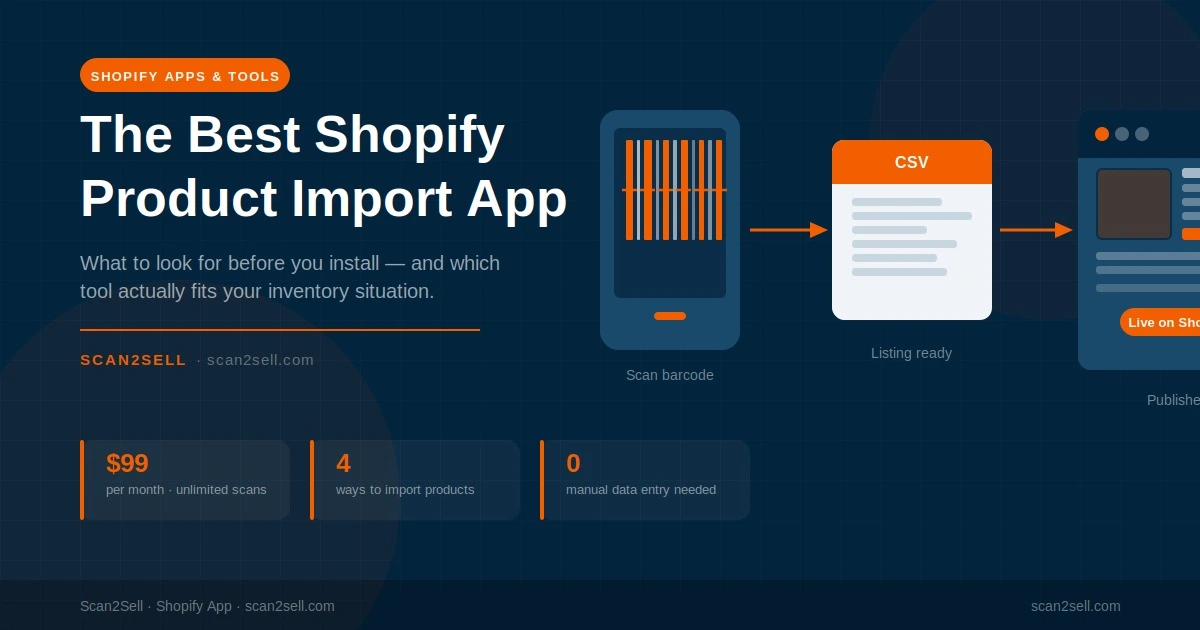
When you scan a barcode with Scan2Sell, a structured product listing appears, including a suggested title, description, category, and product images. You review it, set a price and quantity, and publish. Nothing goes live without your approval.
For higher-volume work, you can also upload a CSV with your barcodes through Scan2Sell's own template, and the listings generate from there. This is different from a standard Shopify CSV import because your starting point is just barcodes, not a full product data set you had to build yourself.
If you prefer working at a desk rather than pointing a phone at products, a Bluetooth handheld scanner works alongside the app for faster throughput.
How Scan2Sell's Four Input Methods Work
One thing worth understanding before you decide on any tool is what the actual inputs are. Scan2Sell supports four ways to get products started:
1
Barcode scan via phone camera
Open the app, point your phone at a barcode, and a listing structure appears. Works for most retail barcodes including UPC and EAN formats.
2
Photo of the product
No barcode? Take a photo instead. The app uses the image as a reference to help structure the listing. Useful for handmade items, vintage goods, or anything without a standard barcode.
3
CSV upload with barcodes
Download Scan2Sell's CSV template, enter your barcodes, and upload it back into the app. Listings are generated from the barcodes in bulk, which is practical for larger inventory runs.
4
Shopify POS integration
If you run Shopify POS in-store, Scan2Sell connects directly so you can scan products from your existing in-store setup without switching between systems.
What the Comparison Actually Looks Like
Here is an honest side-by-side of the main approaches for getting products into Shopify, based on where most merchants actually start.
CSV Import Apps (e.g. Matrixify)
Best when you have a structured file from another platform, a supplier feed, or a previous store. Powerful column mapping and bulk import handling. Assumes your data already exists in some form.
Starting from physical inventory
Scan2Sell
Built for merchants who have products but no digital data file. Scan a barcode or take a photo and a structured listing appears. Review, price, and publish. Works for one item or hundreds in a session.
Shopify Native CSV Import
Shopify's own import tool handles the basics. Works if your file is perfectly formatted. No help with generating data, just moving it from a file into your store.
Virtual Assistant or Data Entry Service
You send someone your products and they build the listings. Slower, usually more expensive over time, and you are dependent on another person's availability and accuracy.
The Question Worth Asking Yourself First
Before you install anything, the most useful question is: do I already have product data, or do I need to create it?
If the answer is that you have data, just not in the right format, a CSV import tool is probably your best move. If the answer is that you have products on shelves and no data file anywhere, Scan2Sell is designed for exactly that starting point.
A lot of time gets lost when merchants install a CSV tool, realize they need to build the CSV from scratch, and spend days on manual data entry before the import even starts. Skipping that step entirely is where the real time saving comes from.
A Note on Shopify's Native CSV Template
Shopify does publish its own CSV template format, and it is worth knowing about even if you end up not using it directly. The template includes columns for product title, body (description), vendor, type, tags, published status, variants, images, and more. It is not particularly forgiving if columns are missing or wrongly formatted.
Scan2Sell's bulk CSV feature uses a simpler input, just barcodes, and handles the output formatting automatically. So if you have looked at Shopify's official CSV template and felt overwhelmed, that is a normal reaction. There is a reason tools exist to work around it.
For merchants who want to understand Shopify's native CSV format in detail, Shopify's own documentation covers the column structure thoroughly.
Frequently Asked Questions
What is the best Shopify app for importing products in bulk?
It depends on your starting point. If you already have structured product data in a file, Matrixify is widely used for large migrations. If you are starting from physical inventory with barcodes and no existing data file, Scan2Sell is designed specifically for that workflow. The two tools solve different problems.
Can I use a barcode scanner to import products into Shopify?
Yes. Scan2Sell supports both your phone camera and a Bluetooth handheld scanner. When you scan a barcode, a product listing appears with a suggested title, description, and images. You review and approve before anything is published to your store.
Does Scan2Sell replace the Shopify CSV import?
Not exactly. Scan2Sell handles the step before the import, building the product data you would otherwise have to create manually. It also has its own bulk CSV input where you supply barcodes and listings are generated from there. If you already have a complete, clean CSV ready to go, Shopify's native importer or a tool like Matrixify may be more direct.
How much does Scan2Sell cost?
Scan2Sell is $99 per month with unlimited scans. There are no per-listing fees or tier limits based on how many products you process.
What if my products do not have barcodes?
You can take a photo of the product instead. Scan2Sell uses the image as a reference to help structure the listing. This works for vintage items, handmade goods, or anything that does not carry a standard retail barcode.
Stop Building Your Listings From Scratch
Scan a barcode, review what appears, set your price, and publish. Try Scan2Sell on the Shopify App Store.
Get Scan2Sell on Shopify