

You just opened your Shopify store. You’re excited, maybe a little overwhelmed, and staring at shelves of physical inventory — or a spreadsheet full of product data — with one big question:
How do I get all of this online?
If that’s you, you’re in the right place.
This beginner-friendly guide will walk you through how to add products to Shopify, step by step, with real screenshots, SEO tips, and a few shortcuts to save you time.
Step 1: Go to your Shopify admin and click “Products”
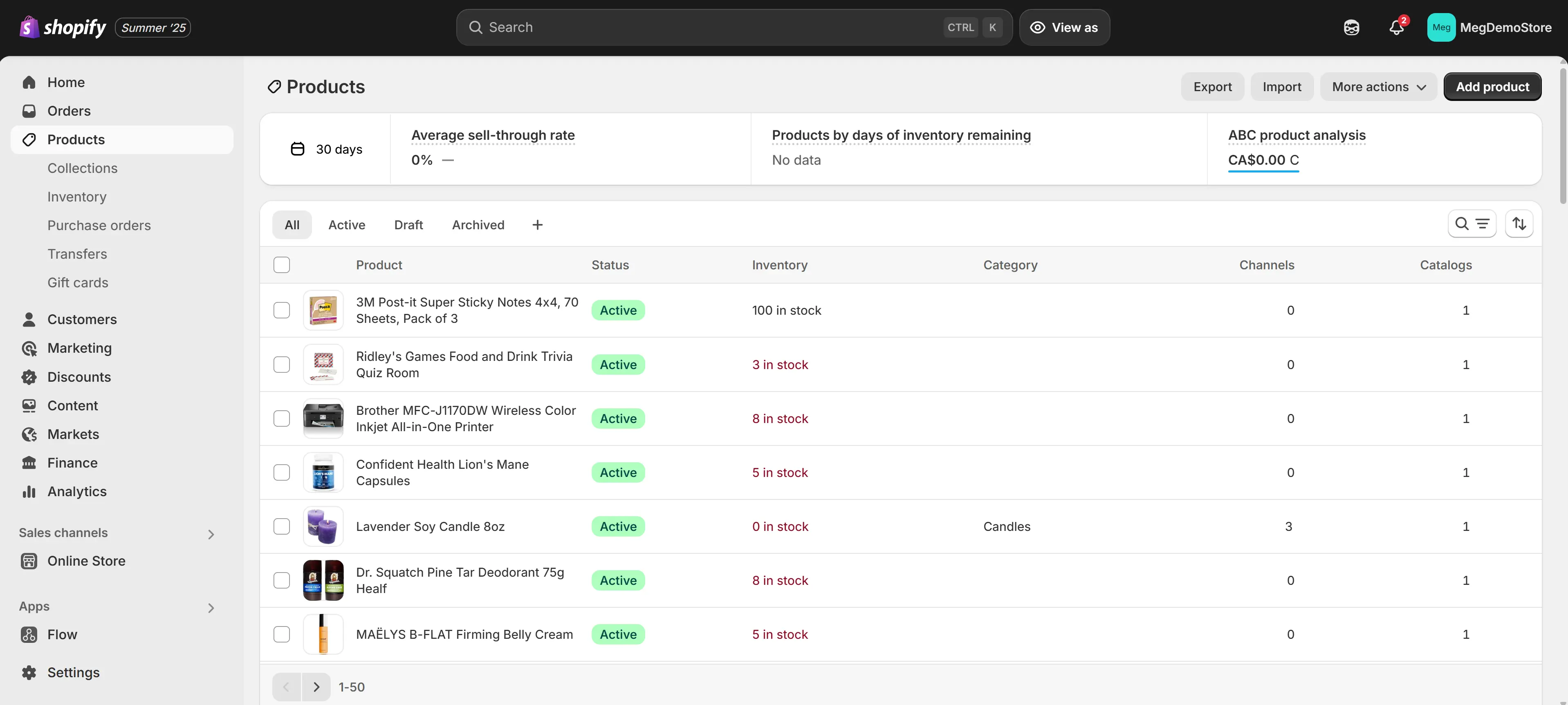
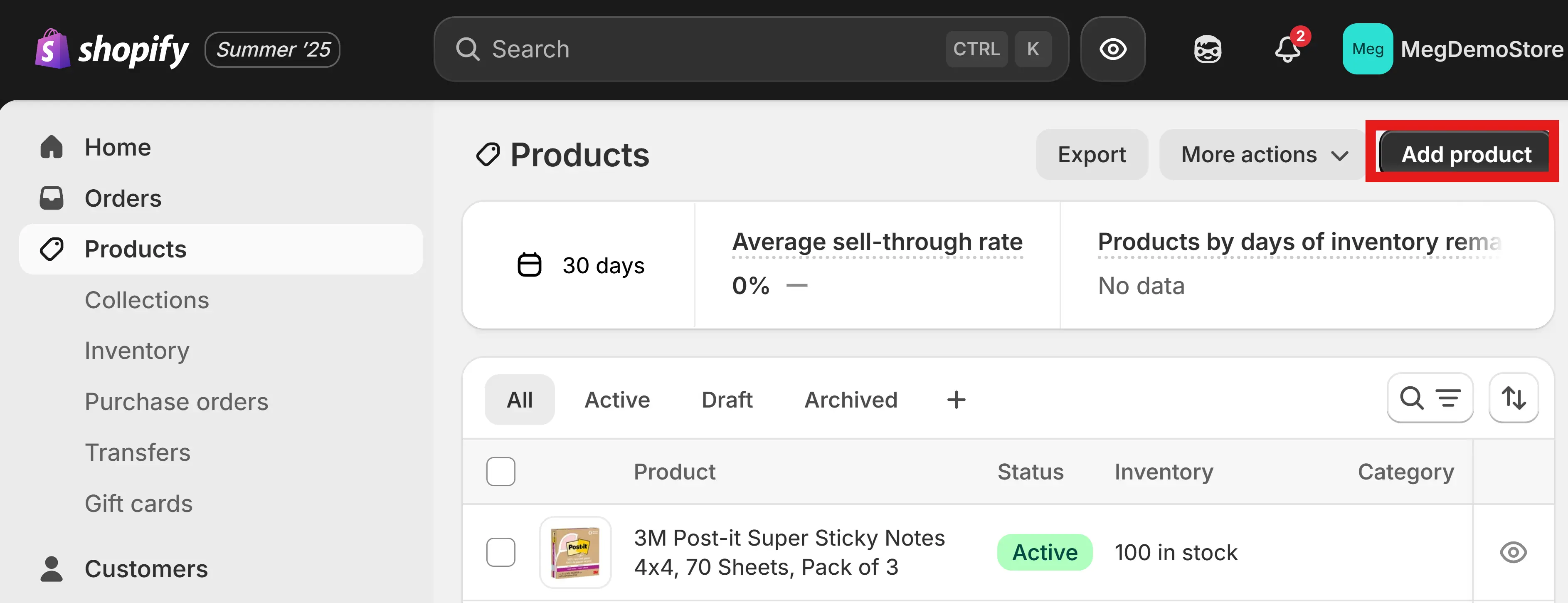
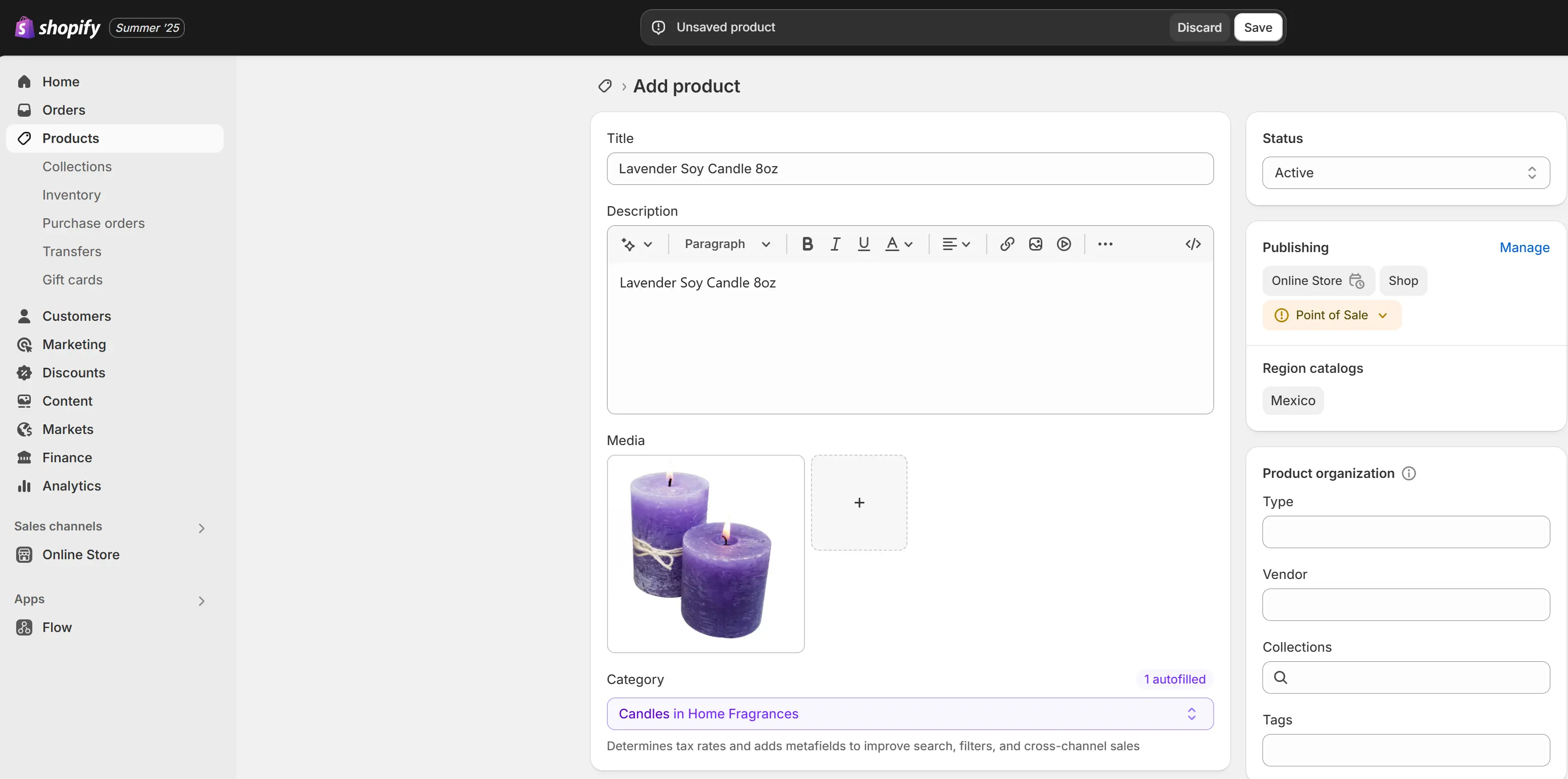
Once you're logged in, find the “Products” tab on the left-hand side of your Shopify dashboard. Click “Add product” to get started. This is where you’ll enter all the info your customers will see online. Think of it like setting up a shelf in your store, but digitally.
Step 2. Add a Clear Title and a Helpful Description
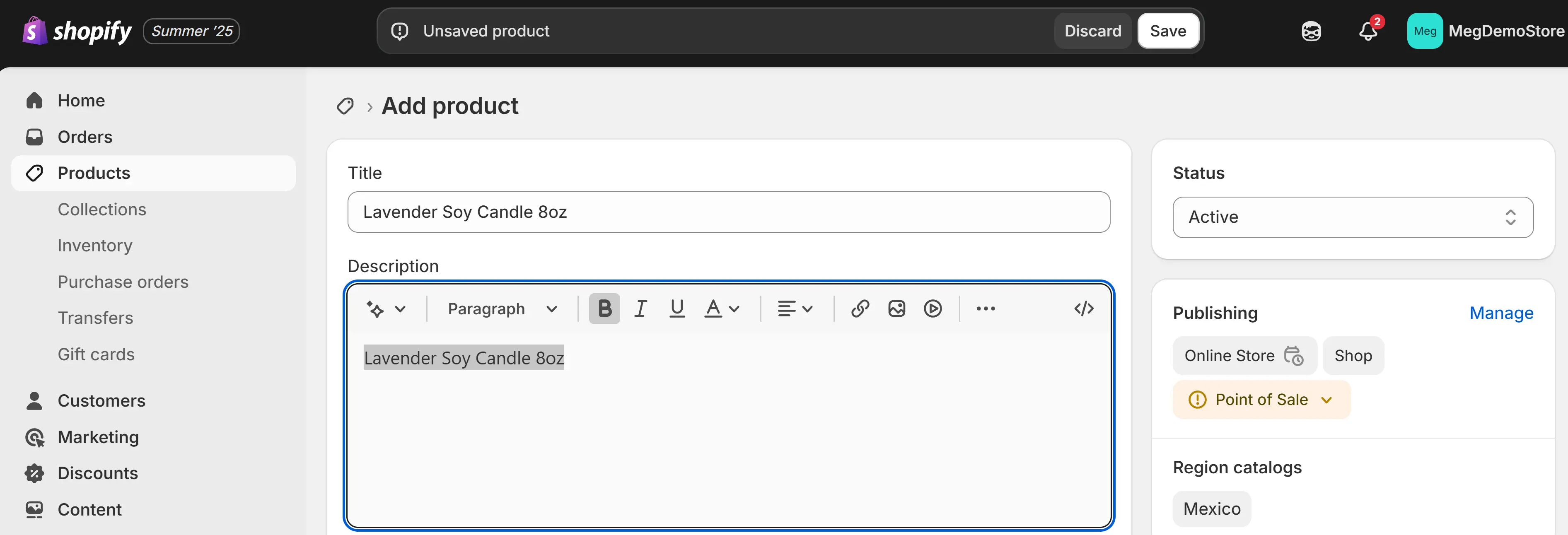
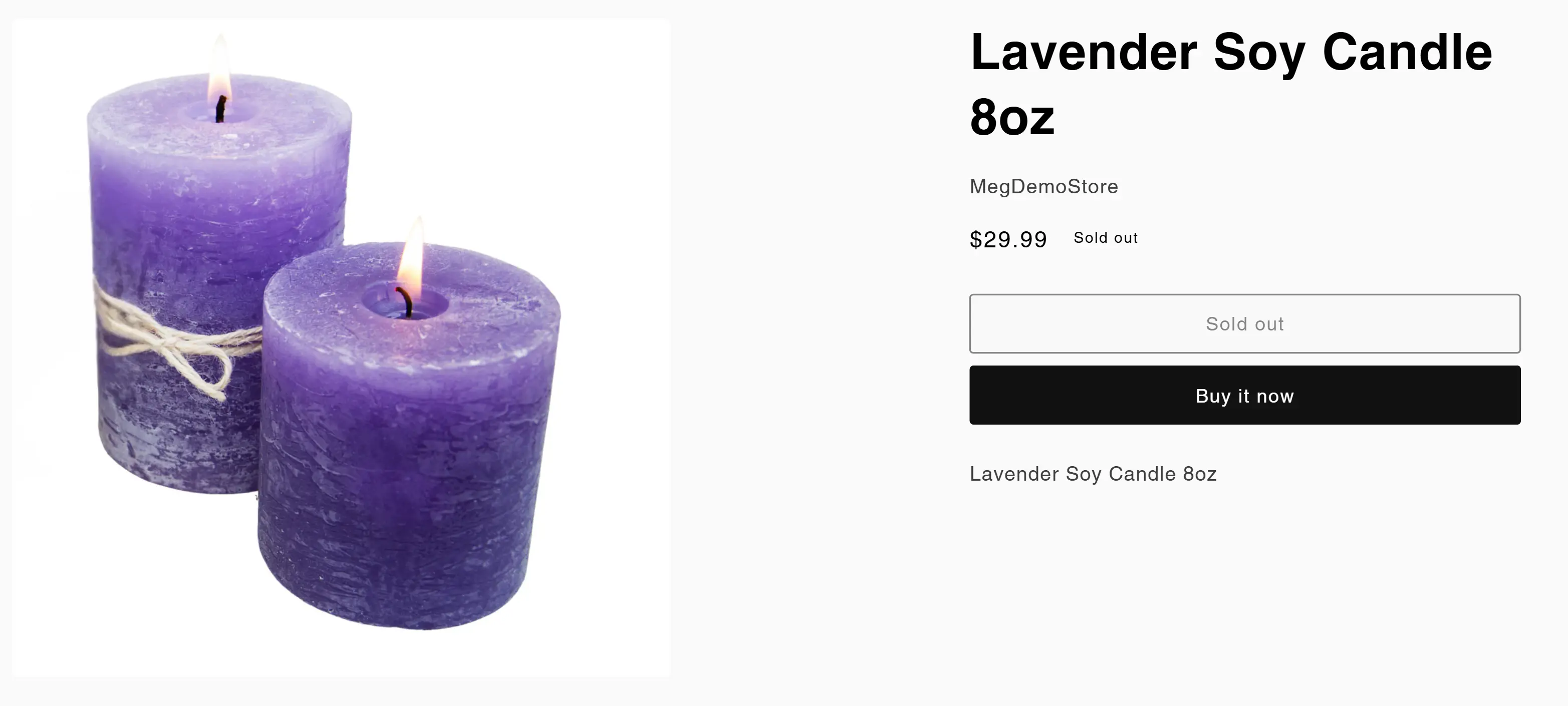
Start with your product title. Keep it simple, searchable, and specific. Instead of just “Lavender,” go with something like “Lavender Soy Candle – 8oz”. This helps customers (and Google) understand exactly what you’re selling.
Next, write a description that answers the question: Why should someone care?
Does it smell like fresh lavender fields? Is it hand-poured? Made with clean ingredients? Think of your description as a conversation — like explaining the product to someone in your store. Be clear, honest, and helpful.
📌 Pro Tip: Highlight what makes your product unique in the first sentence. Many shoppers skim — lead with value.
Step 3. Upload High-Quality Product Images
Your customers can’t pick up or feel your product — so your images need to do the selling.
Upload clear, well-lit photos from multiple angles. A plain background (like white or light gray) works best to keep the focus on your product. If possible, include at least one lifestyle image showing the product in use — this helps shoppers imagine it in their own life.
You don’t need pro gear — just good lighting and sharp focus. Even smartphone photos can look great with the right setup.
📸 Pro Tip: Use square images (e.g. 1000x1000px) to ensure they look clean across all Shopify themes.
If you are having trouble with photos, there is a product that helps you find professional photos for your branded products:
Find Professional Product Photos
Step 4. Set Your Price and Track Inventory
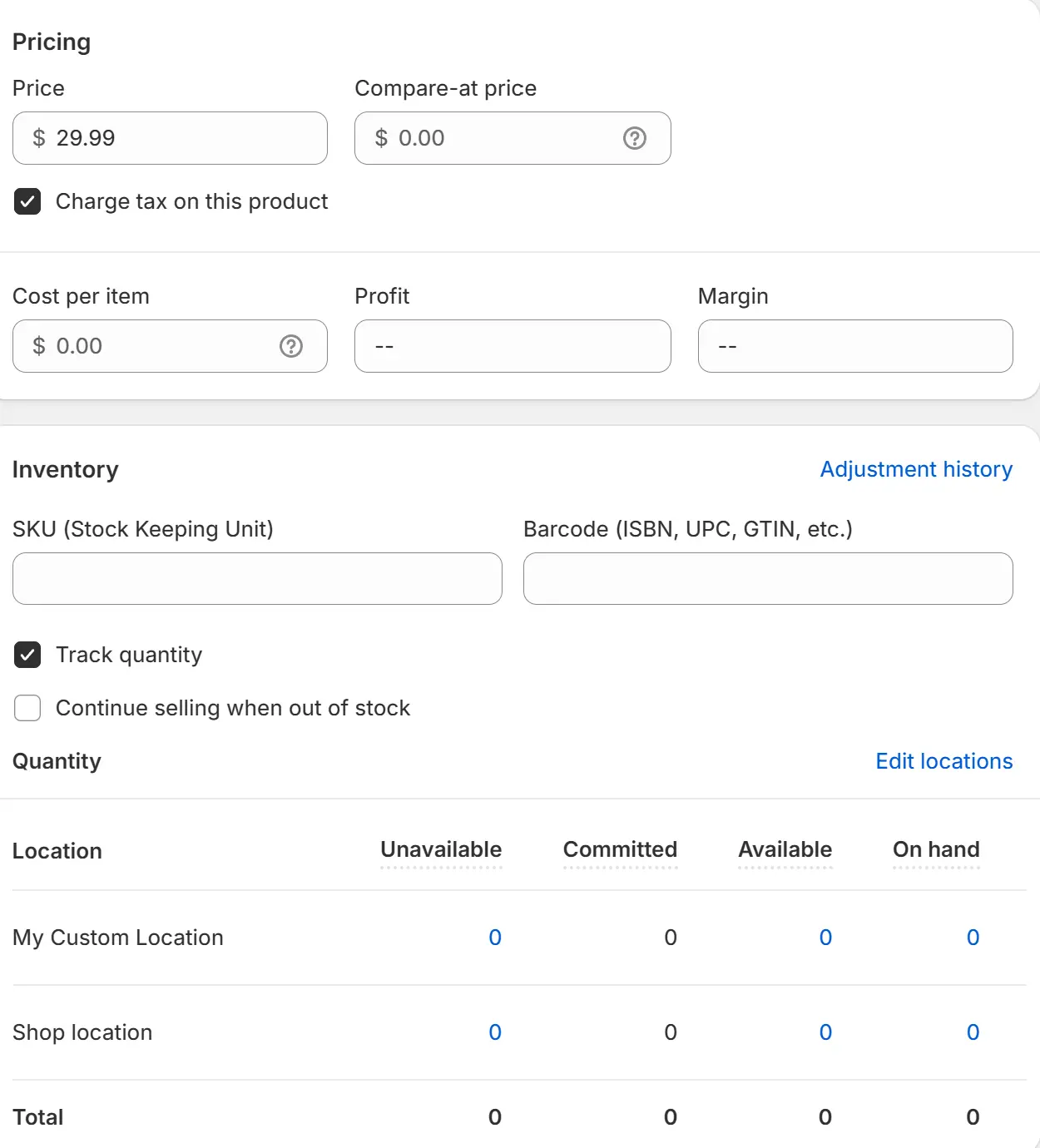
Start by entering your product price. If you’re offering a discount, you can also fill in the “Compare at” price to show the original price crossed out — great for highlighting deals.
Next, update your inventory settings. Add a SKU if you use one (especially helpful for tracking or reordering), and enter how many units you have in stock.
Even if you’re not actively tracking inventory yet, it’s smart to enter a number — it helps Shopify keep things organized and gives you a clearer picture of what’s available.
Step 5. Add Shipping Weight and Organize Your Product
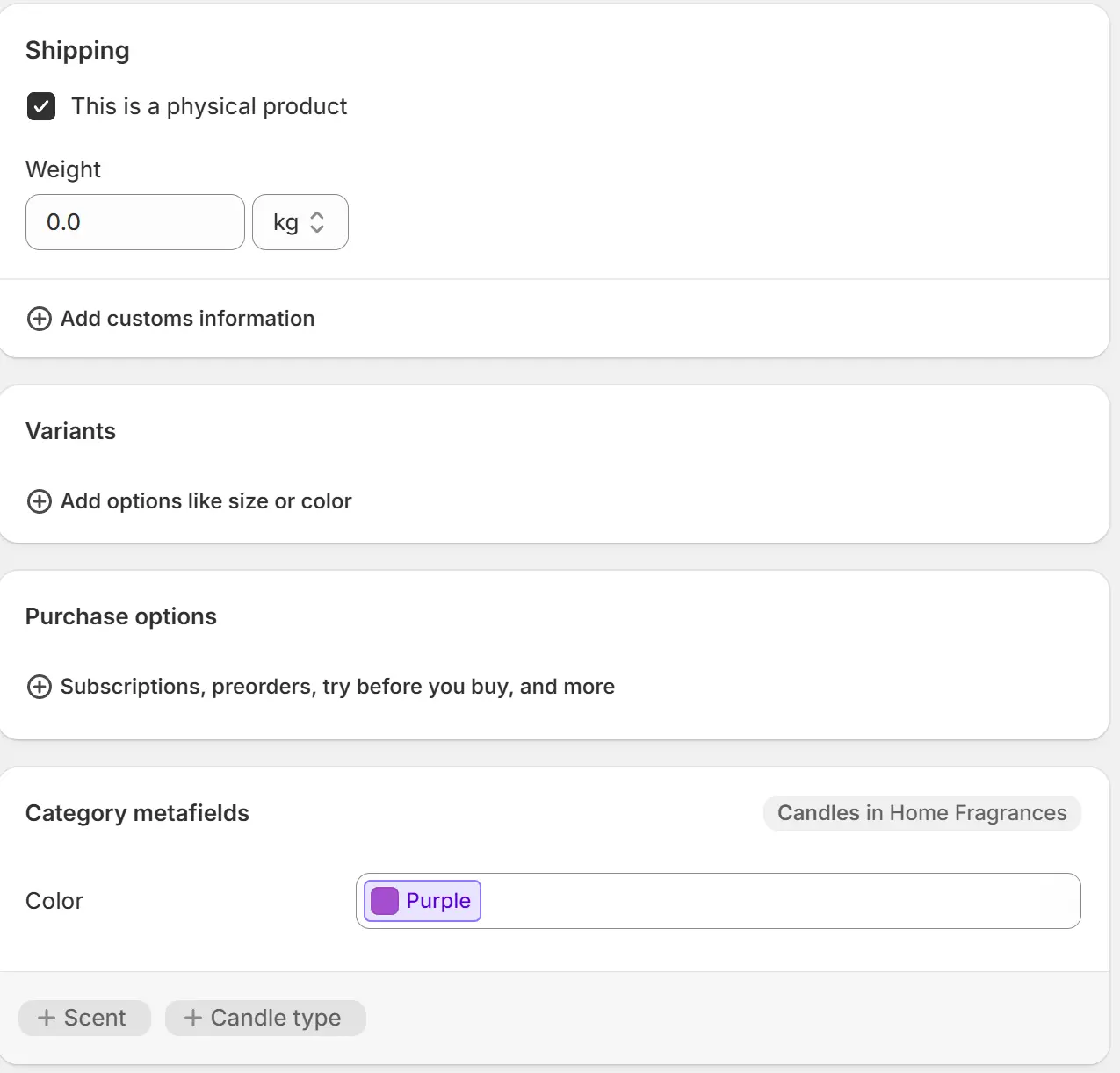
If you're shipping physical products, enter the item weight so Shopify can calculate accurate shipping rates at checkout. Be as precise as possible — this ensures you don’t undercharge (or overcharge) for shipping.
Then, organize your product using the Product Type, Vendor, and Tags fields:
Product Type: A general category, like “T-Shirt” or “Coffee Mug”
Vendor: The brand or supplier name (can be your store name if you make it yourself)
Tags: Keywords that help with filtering and collections, like “cotton,” “unisex,” or “gift idea”
📦 Pro Tip: Tags are powerful — you can use them to create automated collections later. Think like your shopper: what words would they use to search for this?
Step 6. Optimize Your Product’s SEO Preview
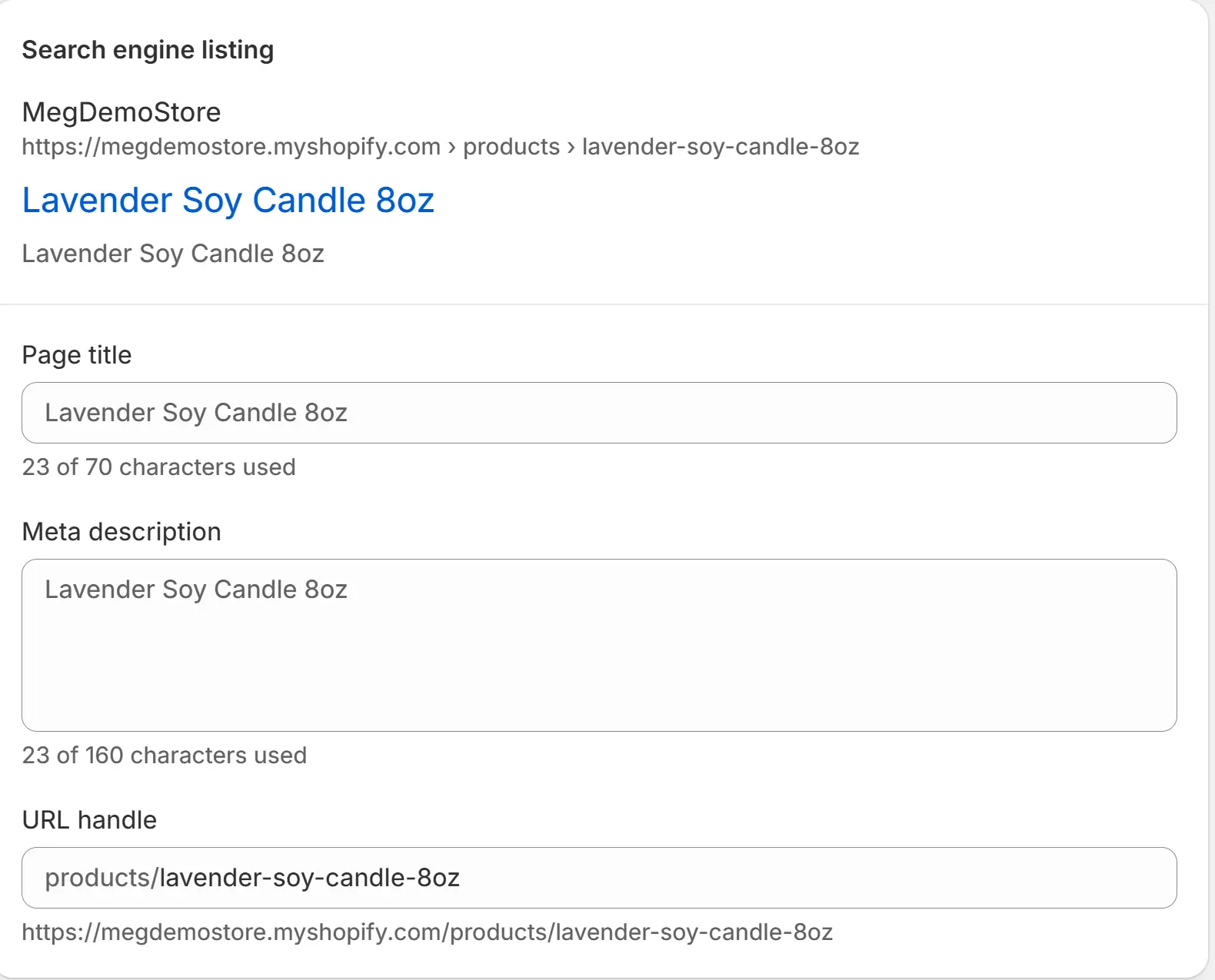
This is what shows up in Google search results — so don’t skip it.
Shopify automatically generates a preview, but you can (and should) click “Edit” to fine-tune it.
SEO Title: Keep it under 60 characters and include the product name, brand, and a key detail (like size or material). Example: Lavender Soy Candle – 8oz | Bloom & Co.
Meta Description: Write a short, compelling summary (under 160 characters) that tells people why they should click. Example: Hand-poured lavender soy candle with clean burn and calming scent. Ships fast from California.
🧠 Pro Tip: Think like a shopper: What would you type into Google to find this product? Use those words in your SEO fields.
There are tools on the Shopify App store that can use AI to write product SEO descriptions.
Step 7. Save and Preview Your Product
Once you’ve filled out all your product details, click “Save.” Shopify will generate a preview link so you can see exactly how your product looks in your store — just like your customers will.
Take a moment to check the title, images, pricing, and description. If everything looks good, congrats — your product is now live and ready to sell.
🛍️ Pro Tip: Click the preview on both desktop and mobile. A quick glance helps you catch formatting issues before customers do.
Skip the Data Entry — Get Online Faster with Scan2Sell
Let’s be real — adding products one by one is powerful, but painfully slow. Most merchants don’t just have 5 products… they have 500, or even 5,000.
At 10–15 minutes per listing, you could be stuck in data entry for weeks before making your first sale.
That’s why we built Scan2Sell — to make this faster for brick-and-mortar retailers.
No typing. No spreadsheets. No guesswork. Just scan → review → publish → sell.