A plain-language walkthrough for anyone who has never done this before. No tech experience needed.
Why your phone or tablet is the right tool for this
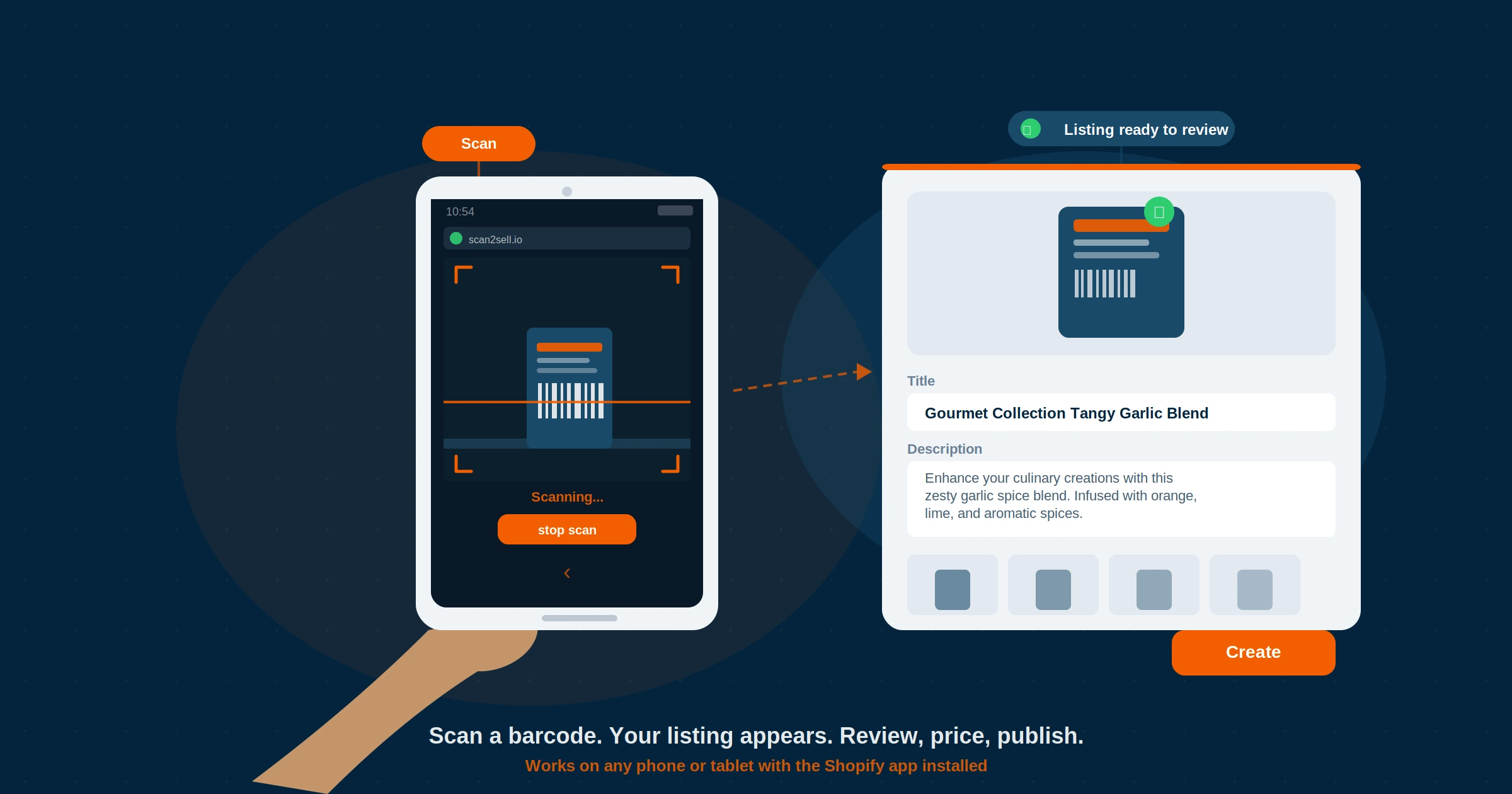
Most Shopify sellers assume they need a computer to manage their store. For product listing, that is not true. Scan2Sell is built to run from your phone or tablet because that is where the work actually happens — in a stockroom, on the shop floor, or while you are working through a new delivery. The camera scanner in the app is designed specifically for mobile. You point your device camera at a barcode on a physical product, and the listing information appears in the app ready to review. No spreadsheets. No typing product names one by one.
If you have a high volume of products to get through, Scan2Sell also works with a Bluetooth handheld barcode scanner paired to your phone or tablet, but for your first product, your device camera is all you need.
Step 1: Open Scan2Sell through the Shopify app
1Find Scan2Sell inside Shopify mobile
On your phone or tablet, find the Shopify app and open it. If you also have Shopify POS installed they may be grouped together in a folder on your device home screen — you want the green bag icon labelled Shopify, not the blue one for POS.
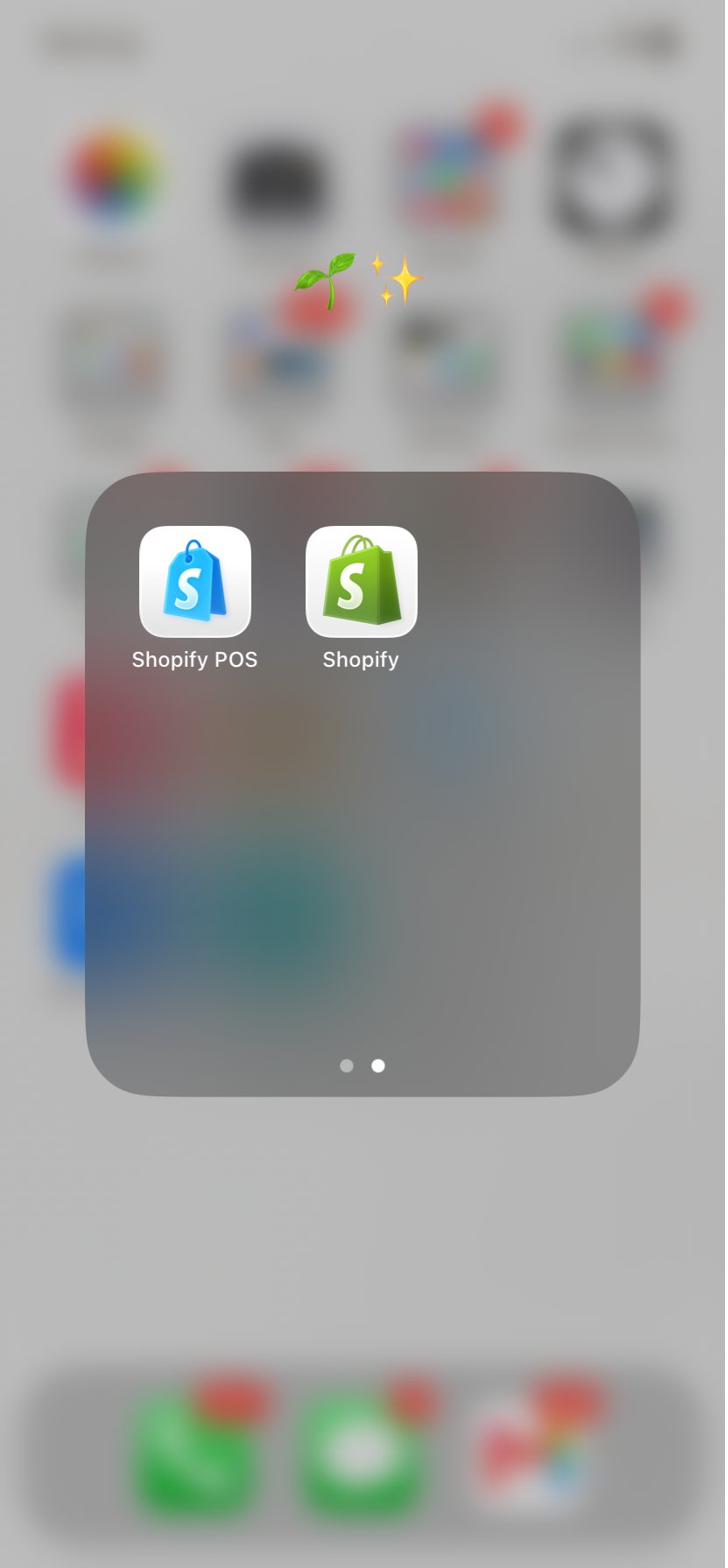
Left: Both Shopify apps on your home screen — open the green Shopify icon. Right: Inside the Shopify admin, scroll down and tap Apps.
Once you are inside the Shopify app, you will see the full admin navigation. Scroll down to find Apps and tap it. Your installed apps will appear. Tap Scan2Sell to open it.
If Scan2Sell does not appear in your apps list, it has not been installed yet. Visit the Shopify App Store, search for Scan2Sell, and install it. Once installed, go back into the Shopify app and follow the same steps.
Step 2: Choose Camera Scanner and grant access
2Open the camera scanner and allow access
When Scan2Sell opens you will see the home screen with all your input options. For a product with a barcode on the packaging, tap Camera Scanner.
The first time you do this, your device will ask whether scan2sell.io can use your camera. Tap Allow. Without this the scanner cannot work. If you accidentally tapped Don't Allow, go to your device Settings, find your browser or Shopify in the app list, tap Permissions, and switch Camera to Allow. Then come back and try again.
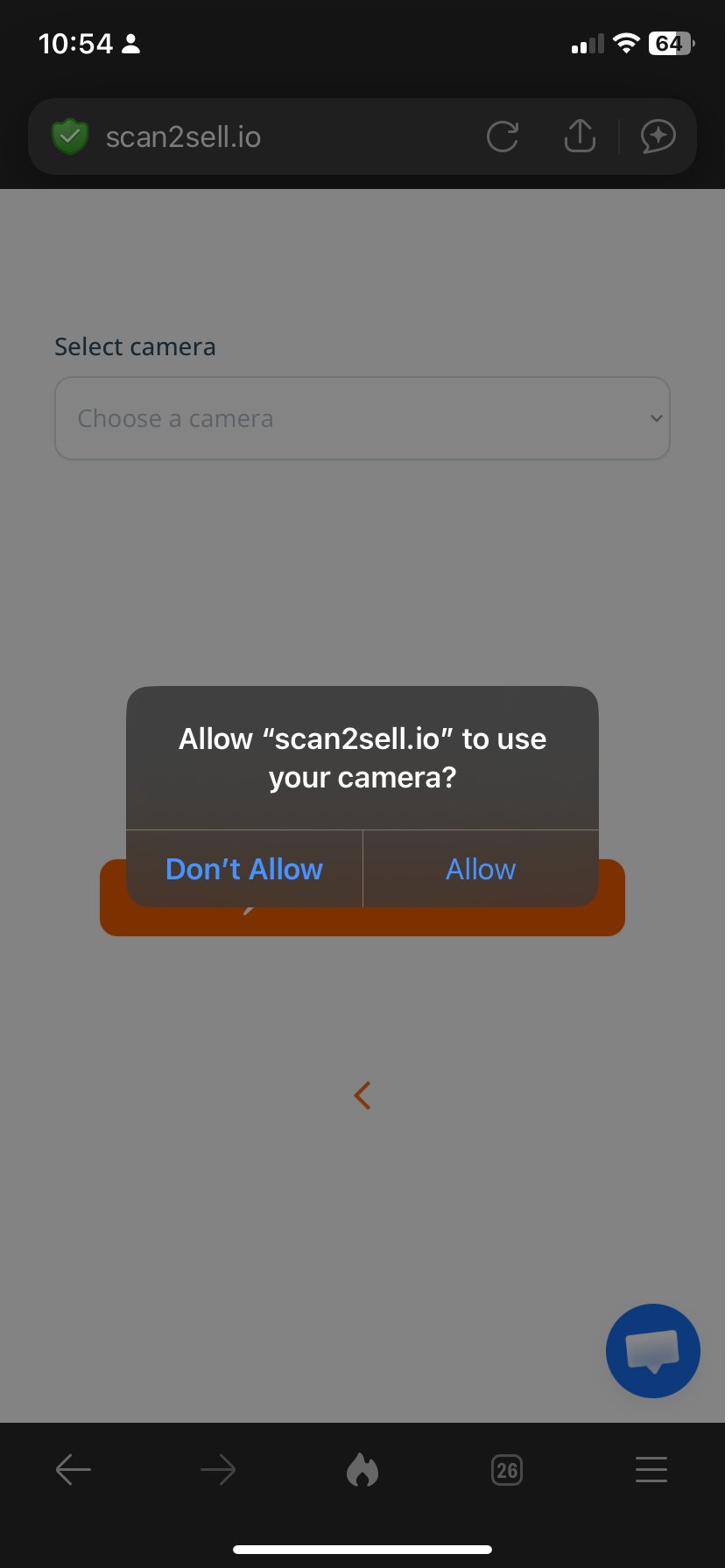
Left: The Scan2Sell home screen — tap Camera Scanner. Right: Tap Allow when the camera permission prompt appears.
Once permission is granted, the live camera view opens. Hold your device about 15 to 25 centimetres from the barcode on your product. Keep it steady and inside the frame. You do not need to tap anything — the app reads the barcode automatically when it locks on.
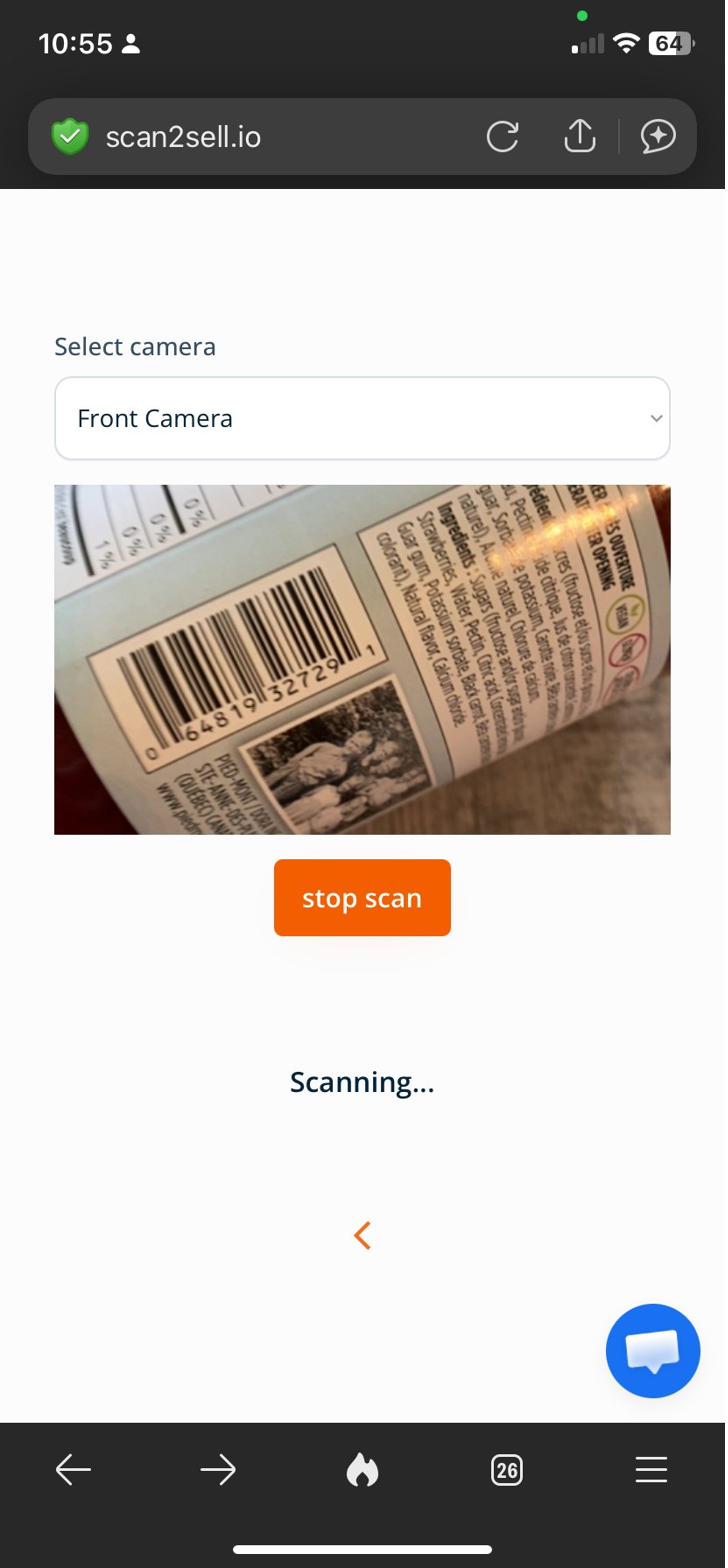
The camera scanner active — hold the barcode inside the frame and the scan registers automatically.
Tip: Good light makes a real difference. If the barcode is not reading, move closer to a window or switch on your device torch from the control centre and try again.
Step 3: Your listing appears — check it over
3Review the auto-filled listing details
When the barcode registers, a product listing appears with the title, description, and product images already filled in. Read through the title and description. They are generated from available product data and are a solid starting point, but you can edit anything on this screen before it goes near your Shopify store.
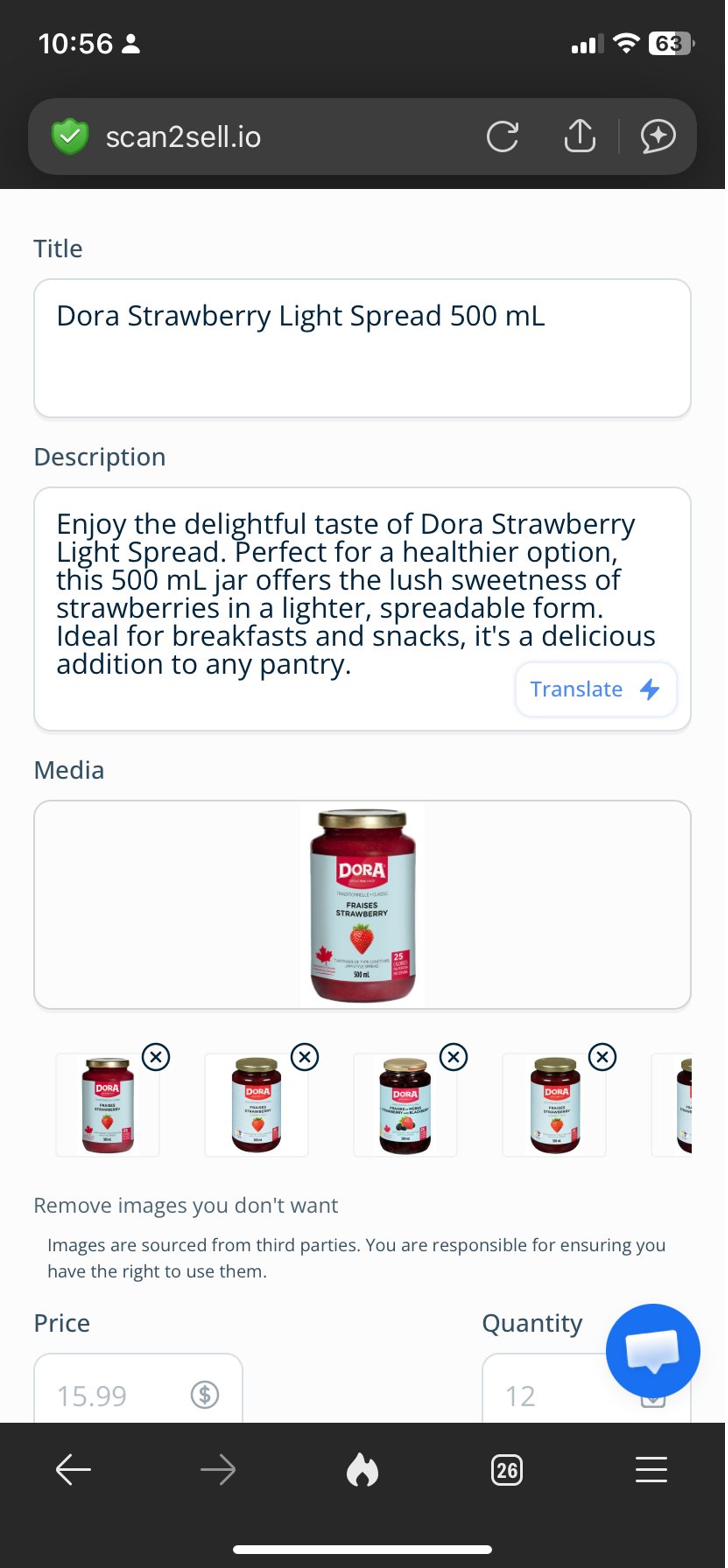
After a successful scan — the title, description, and product image are ready to review and edit.
Below the description you will see a row of product images. Remove any you do not want by tapping the X on them. You are in control of which images stay on the listing.
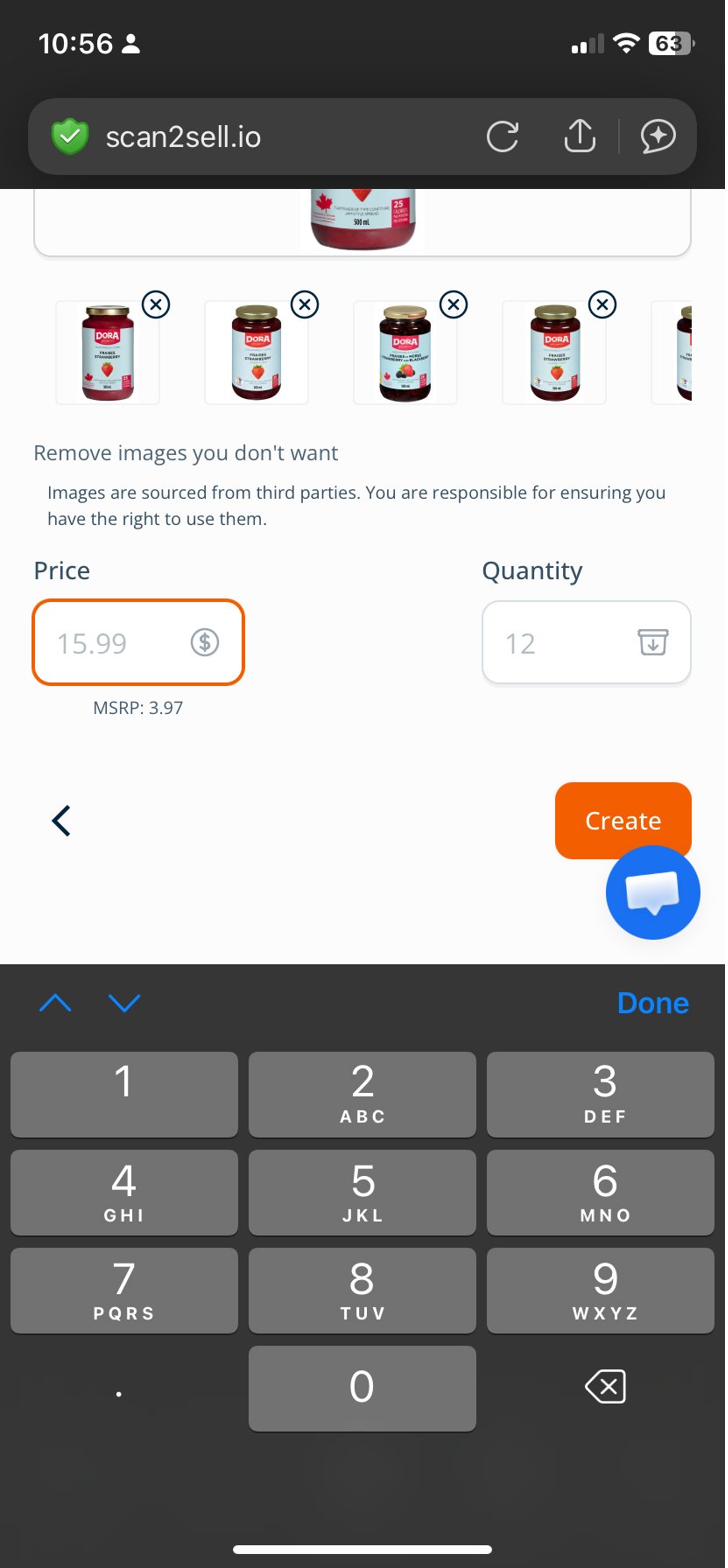
Tap the X on any image you do not want. Then scroll down to set your price and quantity.
Step 4: Add your price and quantity, then publish
4Set price, quantity, and go live
The scan fills in product details but it does not know what you are charging or how many units you have. Scroll down to find the Price and Quantity fields and enter both. The app may show an MSRP as a reference point — your selling price is entirely up to you.
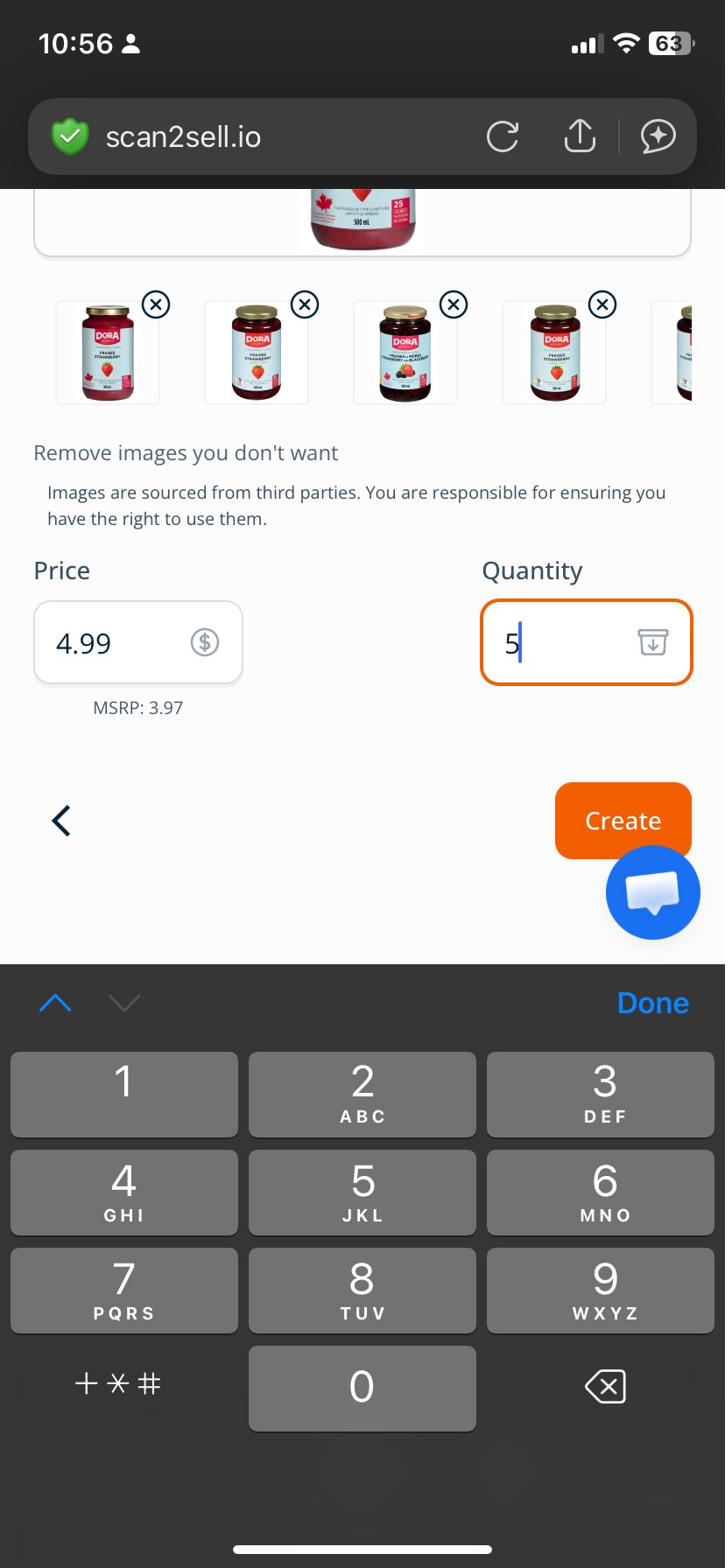
Enter your price and quantity. Nothing is sent to Shopify until you tap Create.
When you are ready, tap Create. The listing goes to your Shopify store. That is the complete process: scan, review, price, publish. Nothing leaves the app until you tap Create, so there is no risk of something going live before you are happy with it.
Step 5: What to do if the scan does not find a result
5No match? Use Take Picture instead
Not every scan will return a listing. Some products — particularly private label goods, very old items, or products made for specific regional markets — may not have a match in the database. This is a known limitation, not a sign something has gone wrong.
When no result comes back, go back to the Scan2Sell home screen and tap Take Picture. Tap the upload area to choose how to add your image.
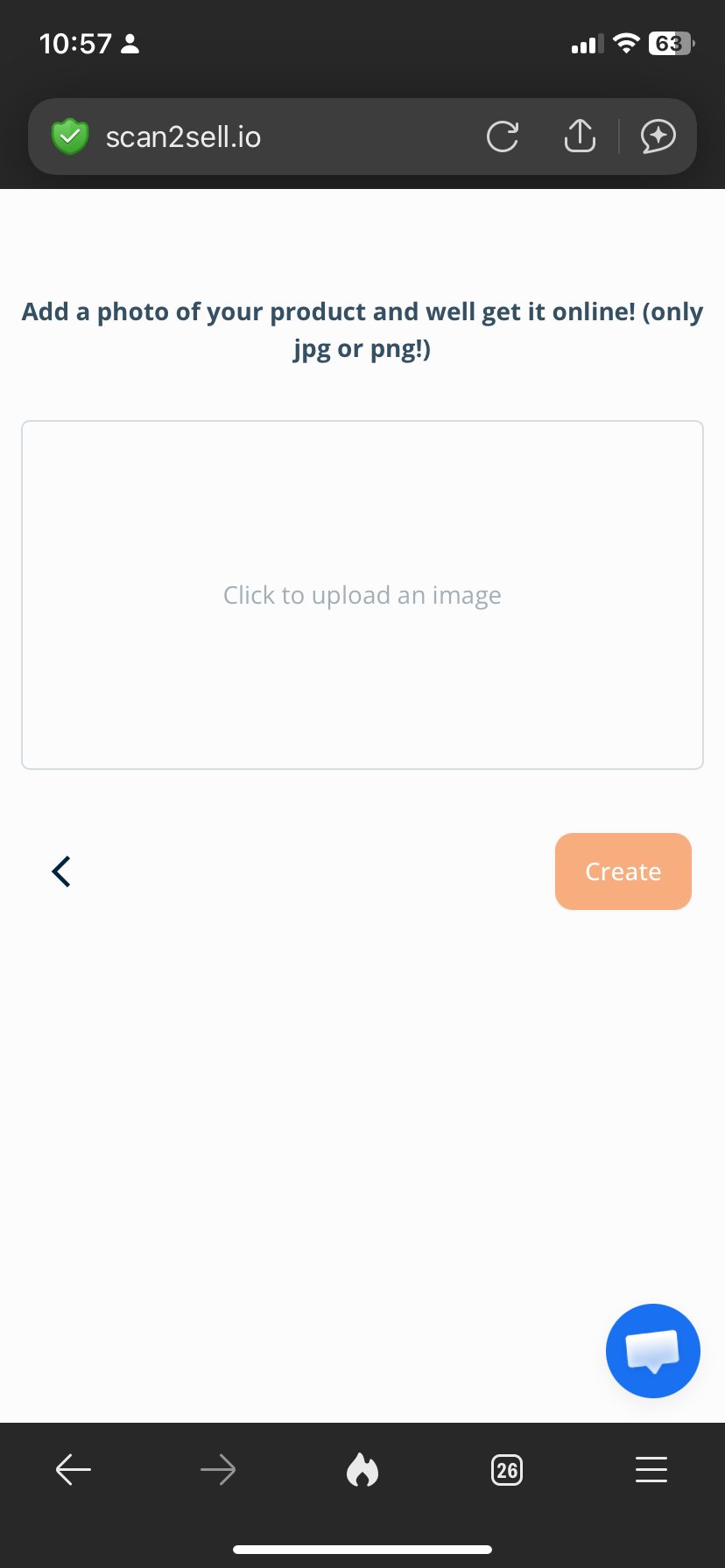
Tap the upload area, choose Photo Library or Take Photo, and the image uploads ready for listing creation.
Choose Take Photo to snap a picture right now, or Photo Library to use an existing one. Scan2Sell uses the image to help structure a starting-point listing so you are not beginning with a blank page.
Common issues and how to sort them
Camera access was denied
Go to your device Settings, find Shopify or your browser in the app list, tap Permissions, and switch Camera to Allow. Close and reopen the Shopify app after changing this.
Barcode not reading
Make sure the barcode is fully inside the frame and the product is held flat. Move closer or further to help the camera focus. In dim light, use your device torch. Damaged or creased barcodes may not scan at all — use Take Picture instead.
Product not found after scanning
Some products are not in the database. Private label goods, regional products, and very old items come up most often. Switch to Take Picture to create a starting-point listing from a photo.
Scan2Sell is not in my Apps list
Scan2Sell needs to be installed from the Shopify App Store first. Visit apps.shopify.com/scan2sell, install it, and it will appear in Shopify mobile under Apps.
Already have products in Shopify?
Scan2Sell creates new listings. It does not update existing ones when you scan. If you are adding new inventory to a store that is already live, each scanned product comes through as a new draft for you to review and publish. Your existing product pages are not affected.
For merchants with large batches of products to add at once, the CSV upload option inside Scan2Sell lets you upload a list of barcodes in one go. You download Scan2Sell's own CSV template, enter your barcodes along with price, quantity, and SKU, and upload the file back into the app. Scan2Sell processes the batch and generates listings for each barcode. The same review-and-publish process applies — nothing goes live until you approve it.
Frequently asked questions
Do I need a Shopify plan to use Scan2Sell?
Yes. Scan2Sell is a Shopify app, so you need an active Shopify account. It works with all Shopify plans including Basic.
Does the listing publish automatically when I scan?
No. Nothing goes live without your approval. After a scan, the listing appears on screen for you to check, edit, price, and approve before anything is sent to your store.
What types of barcodes does Scan2Sell read?
Scan2Sell reads standard retail barcodes including UPC, EAN, and ISBN. These are the barcodes found on most boxed products, books, and packaged consumer goods.
Can I use a handheld scanner instead of my device camera?
Yes. Scan2Sell works with Bluetooth handheld barcode scanners connected to your phone or tablet. For merchants scanning through large volumes of stock, a handheld scanner is more comfortable than holding your device up to every product.
What if my product has no barcode at all?
Use the Take Picture option from the Scan2Sell home screen. Photograph the product and Scan2Sell uses that image to help generate a listing. It is designed for one-of-a-kind, handmade, or unpackaged items where there is no barcode to scan.
Ready to scan your first product?
Install Scan2Sell on your Shopify store and go from physical product to live listing today.
Get Scan2Sell on Shopify