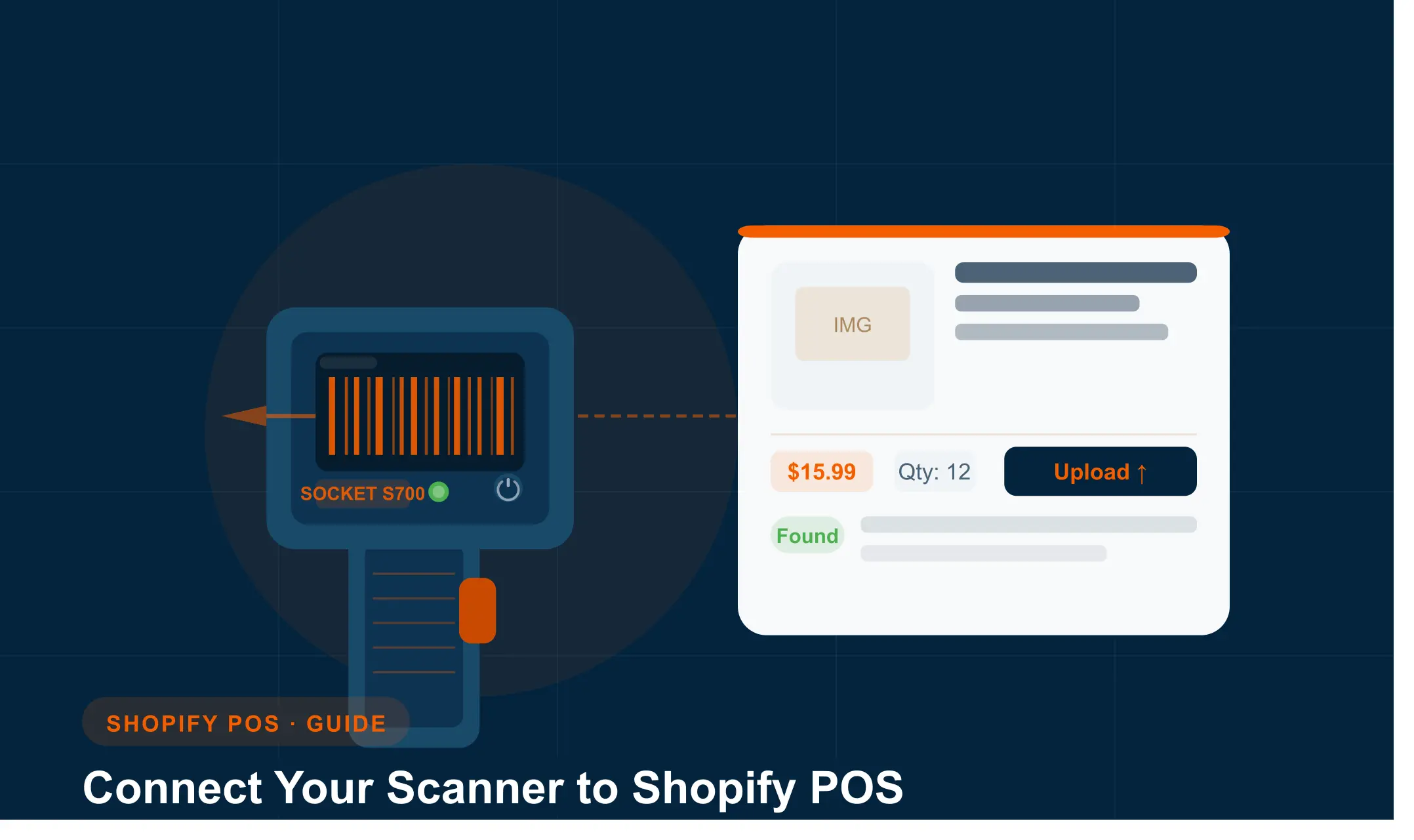
A practical walkthrough for retailers who want to scan products on the shop floor and have listings ready to review — without switching between devices or re-entering data.
If you have ever had to stop mid-scan to type in a product title, or flip between your phone and a laptop just to add a new item, this guide is for you. Connecting a barcode scanner to Shopify POS and pairing it with Scan2Sell changes how the whole intake process feels. You scan, the listing details appear, and you handle approvals when you are ready. The scanning itself does not slow you down.
This is a step-by-step walkthrough of the full setup: adding Scan2Sell to POS, pairing your scanner, and using Scan Queue to process everything at your own pace.
What You Need Before You Start
Before anything else, make sure you have the following:
- A Shopify store with Shopify POS installed
- A compatible Bluetooth barcode scanner (the Socket S700 is a reliable choice and pairs cleanly with Shopify POS)
- Scan2Sell installed from the Shopify App Store
- A phone, tablet, or POS terminal with Bluetooth enabled You do not need any technical background to complete this. If you can pair a Bluetooth speaker to a phone, you can do this.
Step 1: Add Scan2Sell to Shopify POS
Scan2Sell runs as a tile inside your Shopify POS app. Once it is added, it appears on your POS home screen and you tap it to start scanning.
Here is how to add it:
1
Go to your Shopify Admin
Log into your Shopify admin panel from a desktop browser. You need admin access to install POS apps.
2
Navigate to Sales Channels → Point of Sale
In the left sidebar, click Sales Channels. Then select Point of Sale from the list.
3
Open Settings → POS Apps
Inside the POS settings, find the POS Apps section. This is where third-party apps are added to your POS interface.
4
Search for Scan2Sell and add it to your Smart Grid
Find Scan2Sell in the POS Apps section and add it. It will appear as a tile in your POS Smart Grid. You can see it highlighted in the editor and live on the POS home screen in the screenshot below.
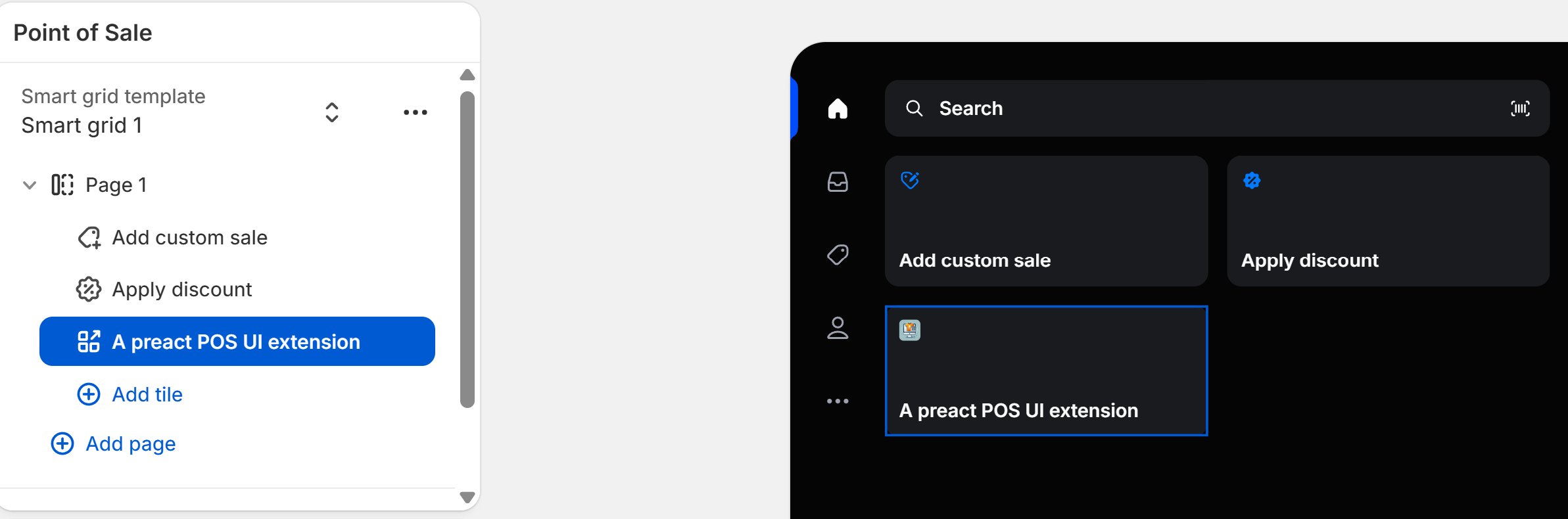
The Scan2Sell tile added to the Shopify POS Smart Grid — visible in the editor (left) and on the live POS home screen (right).
Step 2: Pair Your Bluetooth Scanner
A Socket Mobile scanner pairs to your POS device the same way any Bluetooth accessory does. Once paired, Scan2Sell recognises the scanner input automatically — no additional configuration needed inside the app.
1
Put your scanner into pairing mode
This varies by model but is usually done by holding the power button until the scanner beeps or flashes. Check your scanner's manual for the exact steps.
2
Open Bluetooth settings on your POS device
On your tablet or phone, go to Settings → Bluetooth and look for your scanner in the list of available devices.
3
Select the scanner and confirm the pairing
Tap the scanner name to pair. Once connected, the Shopify POS Hardware details screen will show the scanner name and a green "Connected" status. The screenshot below shows exactly what a successful pairing looks like.
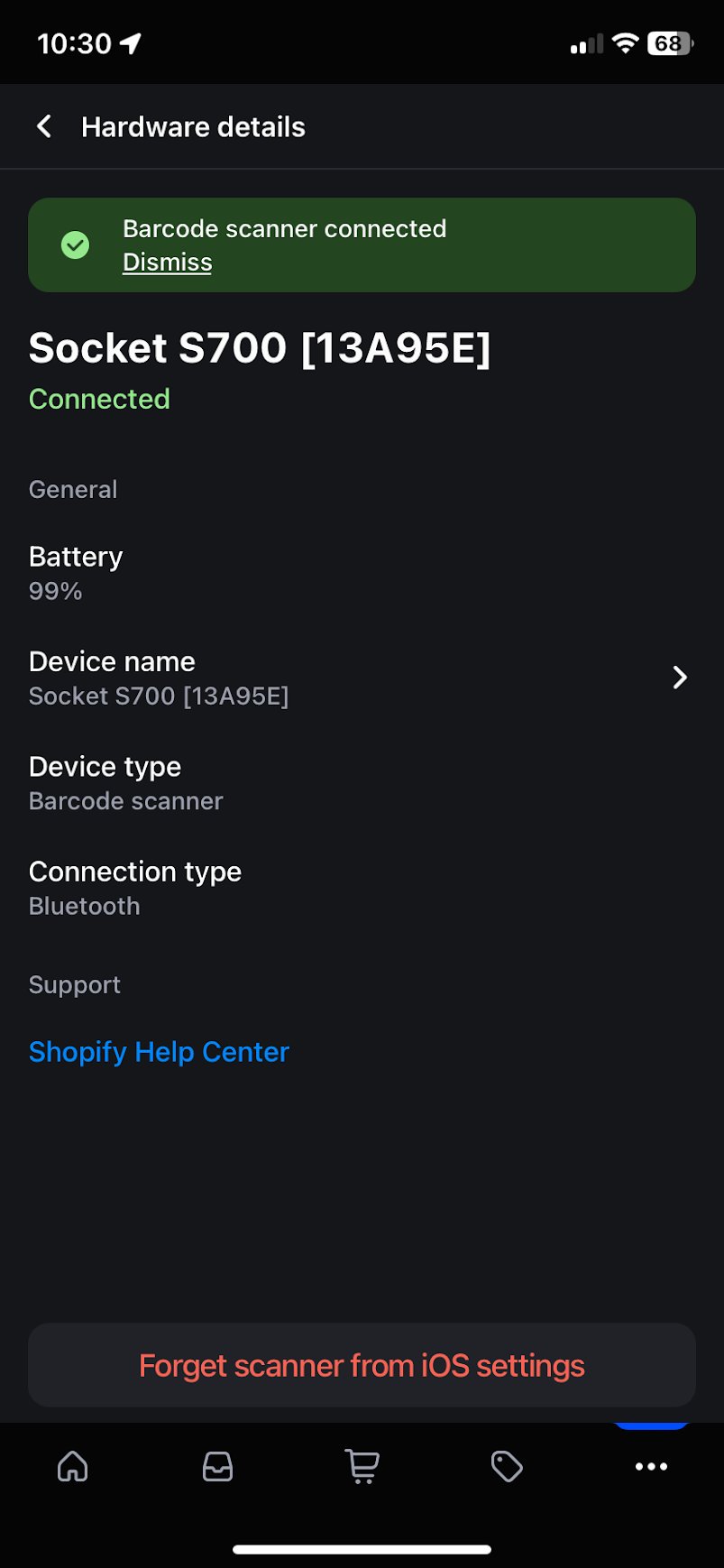
The Shopify POS Hardware details screen confirming the Socket S700 is paired and connected via Bluetooth.
If you are using a phone camera instead of a handheld scanner, you can skip the Bluetooth pairing entirely. Scan2Sell's camera scan mode works without any additional hardware.
Step 3: Scan Products from Your POS Device
Once the Scan2Sell tile is live in POS and your scanner is paired, you are ready to go. Here is what the workflow looks like on the floor:
1
Open Shopify POS and tap the Scan2Sell tile
Launch the Shopify POS app. On the home screen, tap the Scan2Sell tile to open it.
2
The interface shows "Ready to scan"
You will see the Scan2Sell screen with the scan2sell-pos extension loaded and a barcode icon indicating it is ready. Point your scanner at a product barcode and pull the trigger.
3
Keep scanning — items go into Scan Queue automatically
You do not have to stop after each item. Each scan is added to your Scan Queue. Move through your inventory at whatever pace works for you.
4
No barcode? Use your camera instead
For items without a barcode, use the camera option inside Scan2Sell. A photo of the product is enough to generate a structured listing draft. This keeps you moving without needing to type anything on the floor.
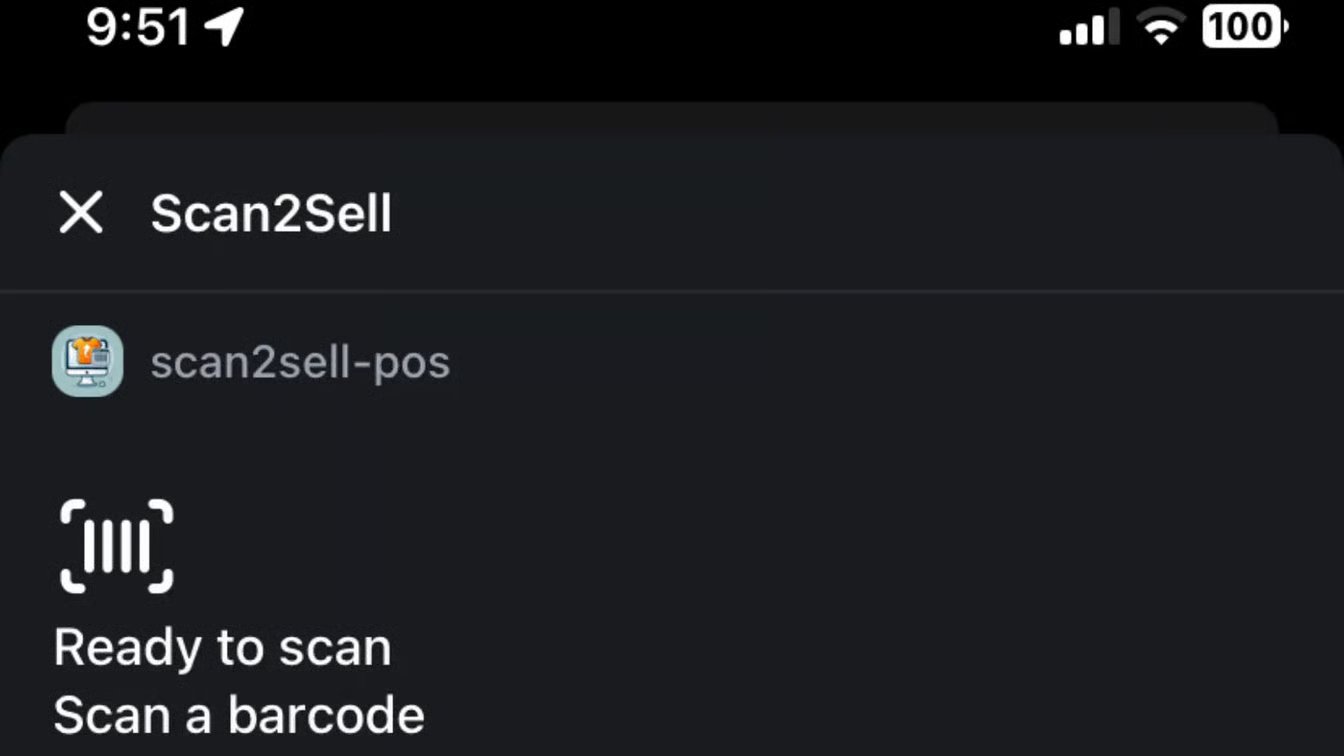
The Scan2Sell interface inside Shopify POS — scanner connected, ready to go.
Step 4: Review and Edit in Scan Queue
Once you have finished scanning on the floor, open Scan2Sell on your desktop or tablet. Your queued items are all there, ready for review. This is where you:
- Check the product title and description that appeared from the barcode
- Review or swap any product images
- Add pricing and quantity
- Make any edits before anything goes live Nothing is published automatically. Every listing sits in the queue until you approve it. The screenshot below shows the Scan Queue with real scanned items — barcodes confirmed, titles generated, images ready to review, and quantity and price fields waiting for your input.
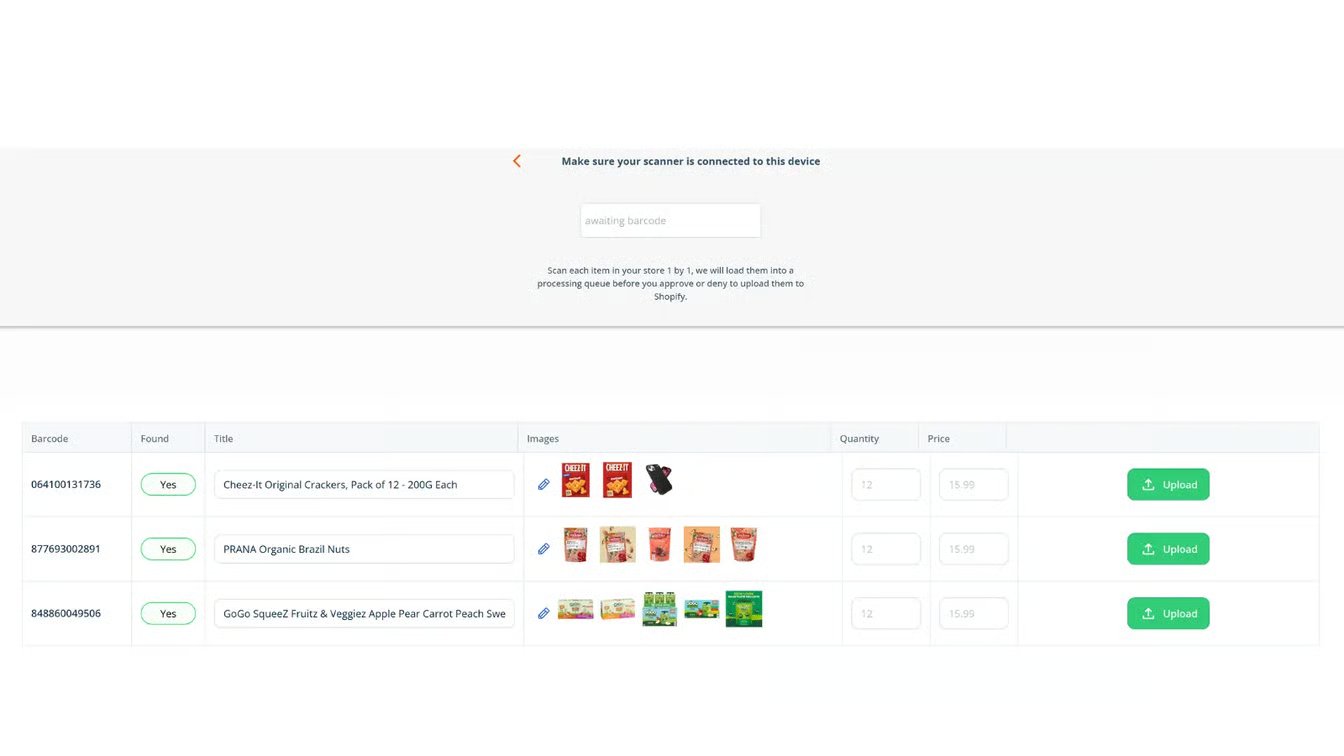
The Scan Queue showing three scanned items with product details, images, and quantity and price fields ready to complete before uploading to Shopify.
Step 5: Approve and Publish to Shopify
When you are happy with a listing — title, description, images, price, and quantity — hit Upload. It moves from Scan Queue directly into your Shopify product catalogue. You can publish one at a time or work through a full batch.
From the moment a product is scanned on the floor to the moment it is live in your store, nothing requires manual re-entry. The listing details appear from the scan, you review them, and you decide what goes live.
What If a Product Does Not Have a Barcode?
Not every product in a retail environment has a barcode. If you are receiving one-of-a-kind items, vintage goods, or locally made products without packaging, the photo method inside Scan2Sell handles those cases. Take a clear photo of the item and the listing structure is generated from the image. It lands in Scan Queue just like any scanned item — ready to review, edit, and approve before anything is published.
Common Setup Questions
Which Bluetooth scanners work with Shopify POS? The Socket S700 is the model shown in this guide and pairs cleanly with Shopify POS. Other HID-compatible Bluetooth scanners generally work as well, but Socket Mobile is the safest starting point if you do not already own a scanner.
Does the scanner need to stay connected to the same device? Yes, the scanner pairs to one device at a time. If you switch to a different tablet or phone, you will need to re-pair. Most scanner models make this straightforward — usually a button hold, not a full setup process.
Can I use Scan2Sell without Shopify POS? Yes. The POS integration is an additional workflow option. Scan2Sell works through a standard browser on desktop and through its own mobile interface. Shopify POS is useful if you are already using it on the floor and want to keep everything in one place.
Four Ways to Get Products Into Scan2Sell
Scan with a Bluetooth Scanner
Pair a handheld Bluetooth scanner to your POS device and move through inventory continuously. Best for high-volume receiving, pallet processing, or any situation where stopping after every item is not practical.
Take a Photo
No barcode on the packaging? Use your phone's camera inside Scan2Sell. A clear photo of the product is enough to generate a structured listing. Works for vintage items, handmade goods, and anything without standard packaging.
Upload via CSV
Have a spreadsheet of product barcodes already? Download the Scan2Sell CSV template, add your barcodes, and upload the file back into the app. Listings are generated in bulk — useful for large manifests or supplier product lists.
Scan Inside Shopify POS
Use Scan2Sell directly from the Shopify POS app on your shop floor device. Items go straight into Scan Queue without needing to switch apps or devices. Designed for retailers who scan while receiving stock in store.
Frequently Asked Questions
Do I need Shopify POS to use Scan2Sell?
No. Scan2Sell works independently of Shopify POS. The POS integration is an optional workflow for retailers who are already scanning on the shop floor using a POS device. You can use Scan2Sell from a browser on desktop or through the mobile interface without POS at all.
What happens to my scanned products if I do not review them right away?
They stay in your Scan Queue until you are ready. Nothing is published automatically. You can scan a full day's worth of inventory and come back the following morning to review, edit, and approve listings at your own pace.
Can I use a phone camera instead of a Bluetooth scanner?
Yes. Scan2Sell supports both. The phone camera mode works well for lower volumes or situations where a handheld scanner is not practical. For high-volume intake — pallets, bulk shipments, or continuous receiving — a Bluetooth scanner is generally faster.
What if a product's barcode does not return useful listing details?
For products where barcode data is limited, you can add details manually in the review step before approving the listing. You can also use the photo method as an alternative starting point for those items.
Is there a limit on how many products I can scan?
Scan2Sell is priced at $99 per month for unlimited scans. There is no cap on how many items can be queued or how many listings you can process in a month.
Get Your Scanner Connected Today
Scan2Sell is available on the Shopify App Store. Add it to POS, pair your scanner, and start building listings from the floor up.
Install Scan2Sell on Shopify