eBay is genuinely a good place to start. The built-in audience is real, listings are straightforward, and you can make sales without having to figure out marketing. A lot of resellers built solid businesses there and there's nothing wrong with that.
But at some point, usually when things are going well, you start wanting more. You want your own store with your name on it. You want to build a customer list that's actually yours. You want to run a sale without paying a cut to a marketplace on every transaction. You want to show up in Google search results, not just eBay's internal search.
Shopify gives you that. Your own domain, your own branding, your own checkout. Customers buy from you, not from a marketplace you happen to sell on. You can run email campaigns to people who've already bought from you, set up Google Shopping ads, create bundles and discount codes. It's a different kind of selling, and for a lot of resellers it's the next logical step.
The thing that stalls most people is the practical side of it. You've got hundreds of listings on eBay. The idea of rebuilding all of that on a new platform is exhausting. So the question becomes: do I copy my old eBay listings over, or is there a better way?
Why copying old eBay listings to Shopify usually creates more work
eBay listings are written for eBay. The titles are built around eBay's search algorithm. The descriptions are formatted to compete in eBay's feed. The category structures, condition fields, and shipping logic are all specific to how eBay works.
When you export that data and try to push it into Shopify, it rarely lands cleanly. You end up with titles that read like keyword strings, descriptions that reference eBay-specific policies, and product data that doesn't map properly to Shopify's fields. You can fix it, but you're fixing it one listing at a time.
There's also the accuracy question. A lot of eBay listings carry old pricing logic, outdated descriptions, and product details that were written in a rush. Migrating them means carrying all of that into your new store.
If you're opening a Shopify store, you're starting a new channel. It's worth building it with clean data from the start.
Scan your physical inventory instead
If the products are sitting in front of you, the fastest path to a Shopify listing isn't through your old eBay data. It's through the product itself. Most retail and wholesale products have a barcode.
Scan it with your phone or a Bluetooth scanner, and Scan2Sell uses that input to generate a draft listing: product title, description, category, and dimensions. You add your price and quantity, choose your product images, do a quick review, and push it to Shopify.
The listing is built for Shopify from day one. It reflects your actual current inventory, not something you wrote on a different platform a few years back. And because you're scanning what's physically in front of you, you only list what you actually have in stock.
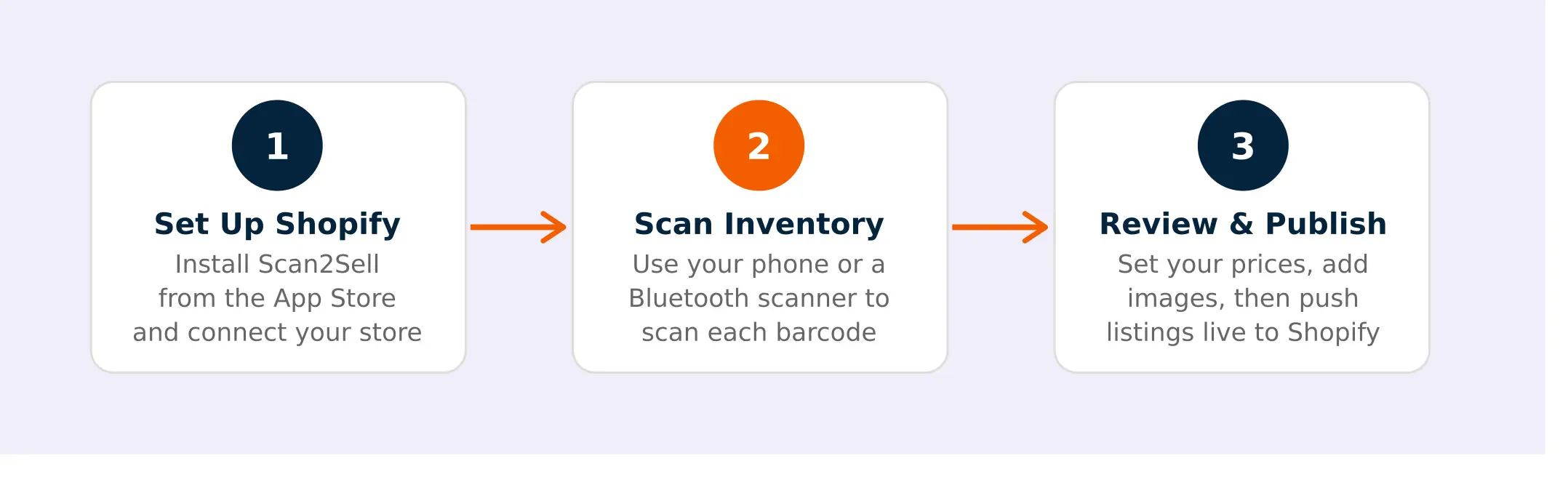
The migration workflow, step by step
Get your Shopify store set up first
Before you scan a single product, get the basics in place. Create your Shopify store, set up your shipping zones, payment methods, and store policies. Then install Scan2Sell from the Shopify App Store and connect it to your store. The setup is straightforward and you only need to do it once.
Work through your inventory with a scanner
Use your phone camera or a Bluetooth barcode scanner to go through your products. Scan2Sell generates a draft listing from each scan, including suggested product details and a description. You review the draft, set your price, add your quantity, and choose your product images before anything goes live. If you're working through a larger catalog, the CSV upload option lets you compile a spreadsheet of barcodes and process them in bulk, which cuts down the time considerably.
Review, set your prices, and publish
Pricing is yours to set, and you're always in control of what goes live. Once your listings are drafted, make any edits that reflect how you actually sell these products, and publish when you're ready. Nothing gets pushed to your store until you say so.
What about products that don't have a barcode?
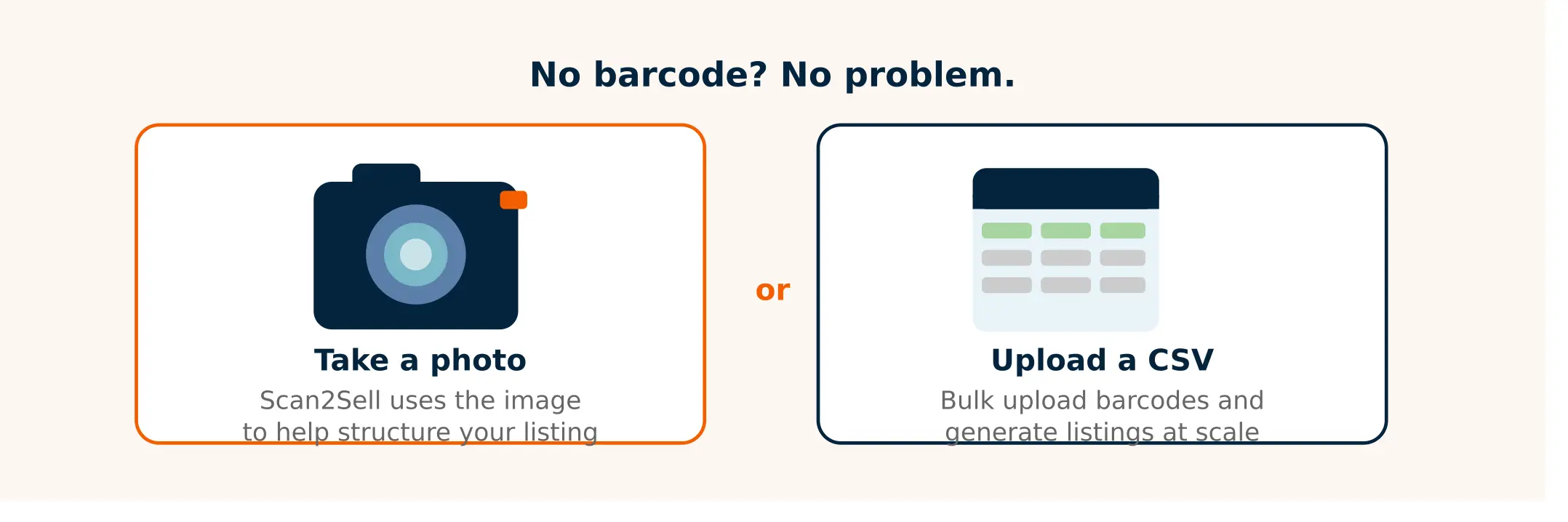
A lot of resellers carry at least some items that won't have a standard barcode. Vintage pieces, handmade goods, custom bundles, or anything sourced through private channels. It's a real part of the inventory picture and worth having a plan for.
Take a photo instead
Scan2Sell has a photo option for products without barcodes. You take a photo of the item, and the app uses that image as a reference to help structure the listing and assist with the creation process. It takes a little longer than a barcode scan, but it's a faster starting point than opening a blank product page in Shopify and filling everything in by hand.
Batch your manual listings and tackle them separately
For anything that genuinely has no usable data source, you'll need to write those listings manually. The most practical approach is to separate them out early. Handle the barcode-scannable inventory first, get the bulk of your catalog live, and work through the manual ones at a pace that doesn't hold up the rest of your migration. For most resellers, the no-barcode items are a small percentage of the total, so they rarely slow down the whole process.
FAQs
Can I import my eBay listings directly into Shopify? Shopify doesn't have a built-in eBay import tool. Third-party migration apps exist, but they typically bring over raw eBay data that needs significant cleanup before it's ready for a Shopify storefront. For sellers with physical inventory on hand, starting from a barcode scan tends to produce cleaner results with less editing time.
Do I need a barcode scanner, or can I just use my phone? Your phone camera works for scanning barcodes with Scan2Sell. A Bluetooth scanner is faster if you're working through a large number of products, but it's not required. A lot of sellers start with their phone and add a scanner later if the volume warrants it.
What if my products are too old or niche to return data from a barcode scan? Older or less common products may return limited data. In those cases, the photo option gives you another way in. For truly one-of-a-kind items you'll need to write the listing manually, but that tends to be a small slice of most resellers' catalogs.
Should I close my eBay store when I move to Shopify? Most sellers keep eBay running during the transition. Closing before your Shopify store is generating traffic means a gap in revenue. Running both channels in parallel while you build out your Shopify catalog is the lower-risk approach, and plenty of sellers keep both going long term.
How long does it take to migrate a typical reseller catalog using barcode scanning? It depends on your catalog size and how much editing you do on each listing. A focused session with a Bluetooth scanner can move through several hundred products in a few hours. Splitting the work across a few sessions is usually more manageable than trying to do everything in one go.