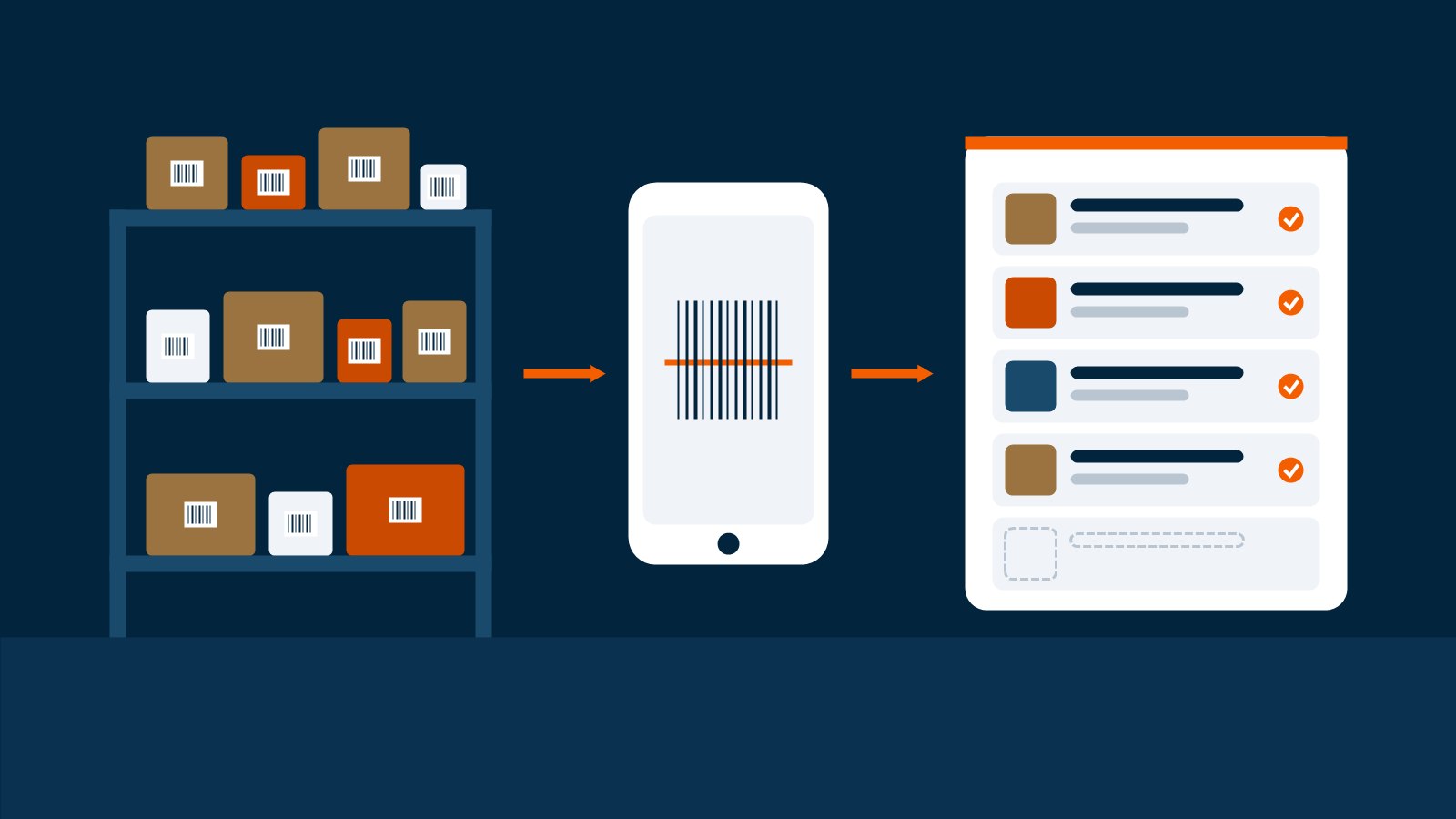
You built the store. You picked a theme and a logo. Then you opened Products in Shopify and it said you have none. The fastest way to fill that list is to scan the barcodes on the stock you already own. With each scan, a draft listing appears with a title, description, category, size and product images. You add a price and a quantity, check it, and approve it. Nothing goes live until you say so.
Sort your stock into three piles first
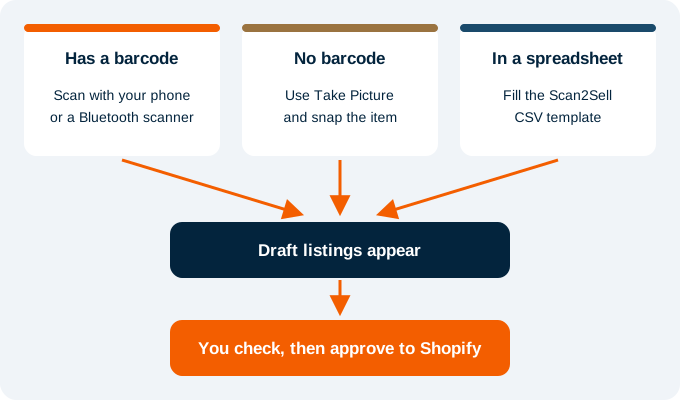
Before I scanned anything, I wished someone had told me to sort. Your shelves hold three kinds of stock, and each one has its own way in.
- Items with a barcode. Most store-bought goods. These are the fast ones.
- Items with no barcode. Handmade, vintage, local brands, things with the sticker torn off.
- Barcodes you already have in a spreadsheet. A supplier sheet or an old till export.
Pile one: scan the barcodes into Scan Queue
Your phone camera works fine for the first fifty items. After that your thumb gets tired of lining up the camera. If you have hundreds of items, get a Bluetooth handheld scanner. You point, click, and pick up the next item.
Open Scan Queue and start scanning. Each scan adds a row to a table, so you never stop to fill in a form. The table shows the Barcode, a Found column, the Title, a row of Images, then Quantity and Price, with an Upload button at the end.
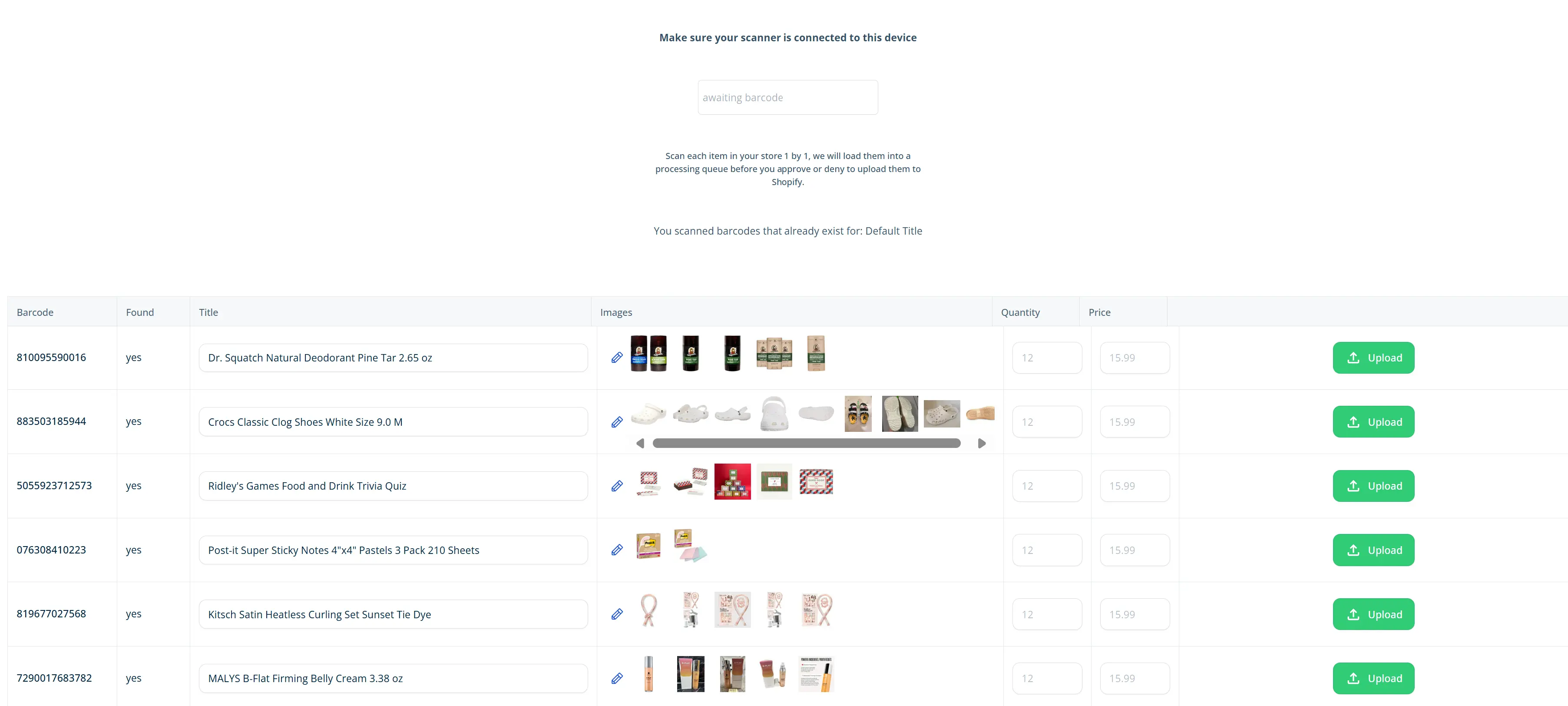
Watch the Found column. "Yes" means product details came back for that barcode. If a barcode is already in your store, Scan Queue shows a note saying so. That saves you from listing the same mug two times.
Tip: Count each item before you scan it. I kept going back to the shelf to check how many I had, and that took longer than the scanning did.
Pile two: snap a photo when there is no barcode
For items with no barcode, use Take Picture. Lay the item flat, take a clear photo, and a draft listing appears from what is in the picture. This takes a bit longer than a barcode. Read the title carefully. A photo can tell what a thing is, but it cannot always tell the brand or the exact size, so you may need to add those yourself.
Pile three: upload the barcodes you already have
If your barcodes are already in a spreadsheet, do not scan them again. Download the CSV template from inside Scan2Sell. It has four columns: Barcode, SKU, Price and Quantity. Paste your barcodes in, add your prices and counts, and upload the file back into the app. Each row turns into a draft listing.
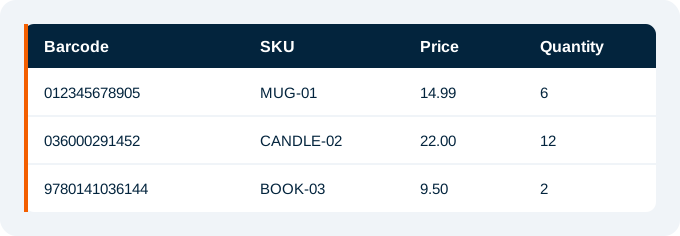
Most guides on a Shopify product import CSV point you to Shopify's own product CSV instead. That file has dozens of columns you fill in by hand. With the Scan2Sell template you only give the barcode. The title, description and images appear when the file is read.
Scan at the counter with Shopify POS
If you sell in person on Shopify POS, you can open Scan2Sell from POS and scan at the counter. It is handy for slow afternoons. You can list a box of new stock between customers without going to the back office.
Check every listing before you approve it
This is where your time really goes, and it should. Here is what I check on every draft:
- Title. Is the size or color right? A 12 oz and a 16 oz bottle can share a name.
- Images. Remove any that do not match what you are selling.
- Price. I always look twice. It is easy to type 1.99 when you meant 19.99.
- Quantity. Make sure it matches the count you wrote down.
When a row looks right, press Upload. It goes to your Shopify store as a product. I like to check in batches of about 25. Any bigger and I start to skim.
Frequently asked questions
How long does it take to fill an empty Shopify store?
Scanning takes a few seconds per item. Checking each draft and setting the price takes longer. A store with a few hundred barcoded items can often be scanned in an afternoon, with the checking spread over a day or two.
Do I need the Shopify CSV template to import products?
No. Shopify's template needs you to type out every title, description and image link. The Scan2Sell CSV template only needs the barcode, SKU, price and quantity. The rest appears in the app for you to check.
What if the Found column says no?
That barcode did not return product details. Take a photo of the item with Take Picture, or type the details in yourself before you upload.
Will anything go live on my store without me?
No. Every listing waits for you. A product only goes to Shopify when you press Upload or approve it.
How much does Scan2Sell cost?
$99 a month with unlimited scans. An empty store with 600 items costs the same to fill as one with 60.