How to Actually Speed Up Product Listings on Shopify
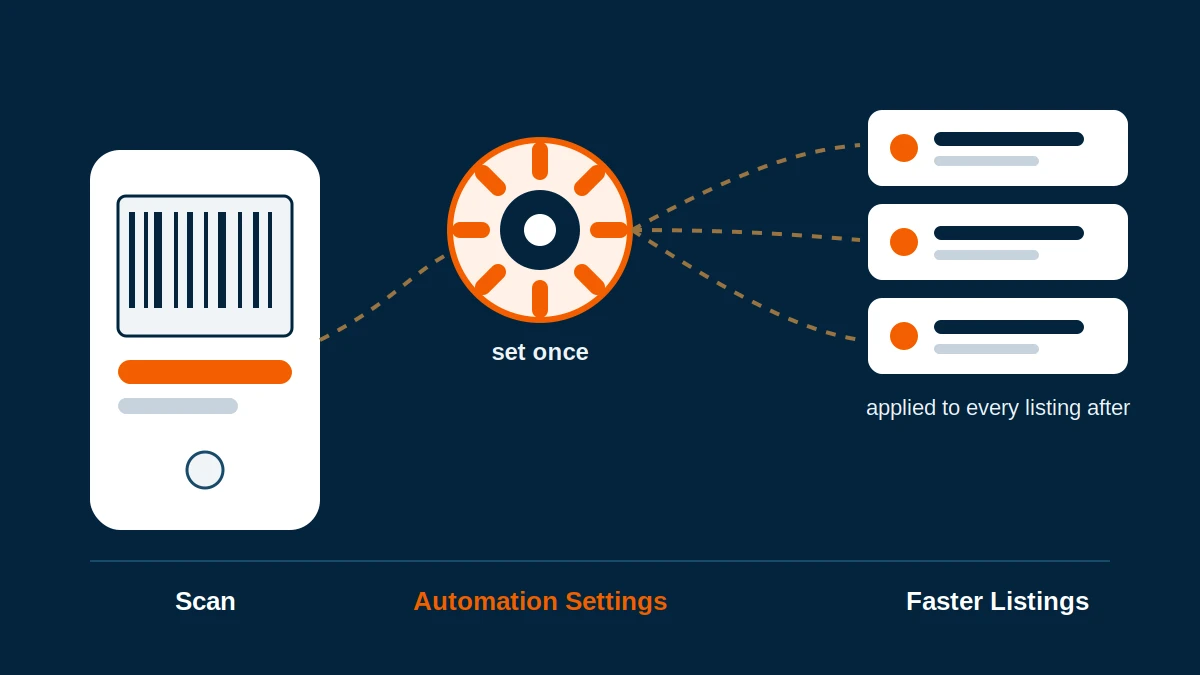
Scanning barcodes faster only gets you so far. The real time comes back when you stop re-entering the same weight, the same tags, and the same publish decision on every single product.
The bottleneck isn't the scan, it's everything after it
It's easy to assume listing speed is all about the scanner. Get a good Bluetooth gun, get a fast camera scan, and the rest takes care of itself. It doesn't. The scan itself takes maybe two seconds. What eats the afternoon is the stuff that repeats on every product: typing the same weight because the barcode doesn't carry it, retyping a tag you use on half your catalog, and deciding item by item whether something is ready to go live or needs to sit in draft first.
Watch where the time actually goes on a heavy scanning day and it isn't the scanning. It's the small repeated decisions between the scan and the "Create" button. That's the part worth automating, and it's the part most people skip past because it's buried in a settings screen nobody opens on day one.
Set a default weight once, stop typing it forever
Every product needs a weight for shipping to calculate correctly, and most barcodes don't hand that over cleanly. So you end up typing "1" into a weight field a hundred times in a row, or worse, leaving it blank and fixing shipping errors later. Scan2Sell has a Default Weight field tucked into account settings. Set it once, in grams or pounds, and it applies to every product you scan from that point forward.
The logic behind it actually makes sense once you see it laid out. Your default weight comes first if you've set one. If you haven't, it falls back to whatever weight came through on the barcode itself. And if neither of those exist, an AI estimate fills the gap so the field is never just sitting empty.
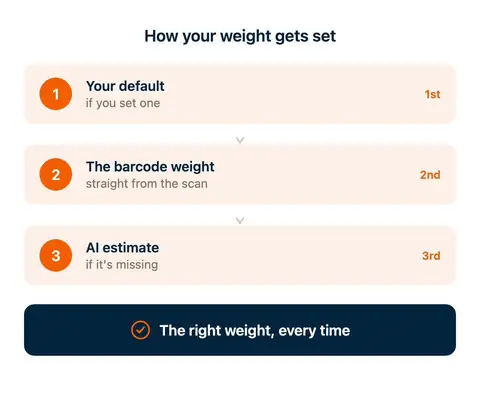
The order Scan2Sell checks for weight: your default first, then the barcode, then an estimate as a last resort.
For example, if you had a spice and pantry catalogue where most items weigh close to the same amount, you could set the default to 5 grams and rarely need to touch the weight field again after a scan. For a store selling one category of similar-sized product, this alone probably saves more time over a month than any other single setting.
Custom AI Instructions: telling it your rules once instead of fixing every listing
If you've ever caught yourself adding the same word to every product title after the fact, "Premium," your brand name, a size note, that's a sign you're editing the same thing over and over instead of setting a rule once. The Custom AI Instructions field in settings exists for exactly that. Type in a line like "Always use Premium in the title" and it applies to how titles and descriptions get written going forward, not just the next single scan.
Set this one up before the first scanning session, not after fifty listings. Skip it and you end up manually adding a brand name or word to every title by hand, which defeats the point of a field that exists to do that automatically.
It's not a huge box, and it's not meant for a full style guide. But one or two clear rules in there save a real amount of editing time down the line, especially if you're picky about how titles read on your storefront.
Auto-Publish, and why most merchants leave it off
The Auto-Publish toggle decides whether a new listing goes live the second you hit Create, or sits in draft until someone looks at it. Most merchants leave it off, so price and quantity get one more check before a customer can actually buy the thing. Draft mode does that without adding a single extra step to the scanning itself.
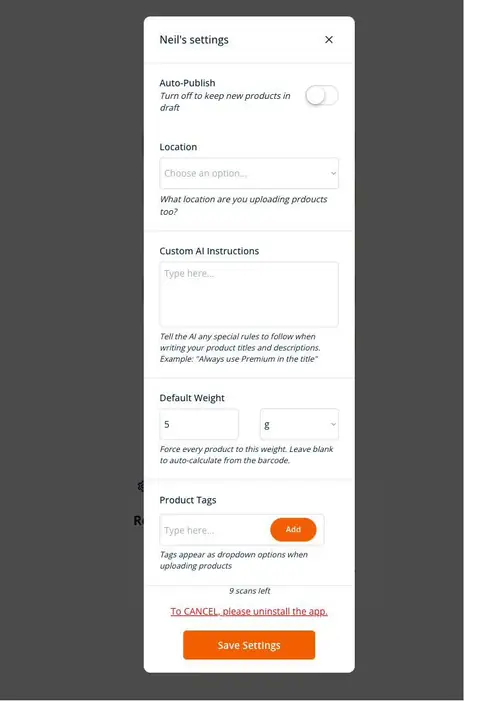
Account settings: Auto-Publish, Location, Custom AI Instructions, Default Weight, and Product Tags, all one-time setup that changes every scan after it.
Location matters here too if you sell from more than one place. Setting the right location in this same screen means you're not manually reassigning inventory after the fact, which is a small thing until you're doing it fifty times in a row.
Scan Queue: the setting that changes how you work, not just what you type
Scanning one product, reviewing it, hitting Create, then starting the next one is fine for a handful of items. It stops making sense once you're standing in front of a restock cart with forty things on it. Scan Queue is built for that second situation. You scan item after item and each one drops into a queue instead of forcing you to stop and review immediately. Once you're through the pile, you go back and bulk edit quantity, price, and weight across everything at once before anything uploads to Shopify.
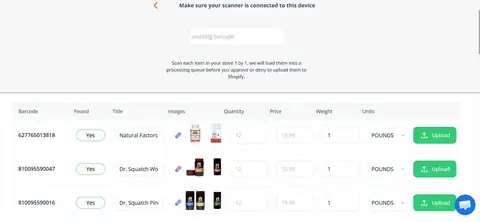
Scan Queue after a batch session. Barcode, Found status, and Title fill in per item as you go, ready for a bulk review before upload.
Quantity is worth typing carefully in this view. Scan Queue doesn't know how many units you have on the shelf, so that field is blank until you fill it in for each item during the bulk edit. It's an easy one to rush through when you're moving fast through a long queue, and a wrong number here means a wrong quantity live on your store until someone catches it.
Import CSV: for when you're not standing in front of the products at all
Scan Queue assumes you have the physical item in hand. Import CSV doesn't. If you've got a supplier invoice, a spreadsheet of barcodes, or a shopify csv template already sitting in your inventory system, you can upload it directly instead of scanning one by one. Download the Scan2Sell csv template and the only column that actually has to be filled in is barcode, no hyphens or dashes, just the plain string of numbers. Price, quantity, and SKU are there if you have them, but leaving them blank doesn't stop the import from working.
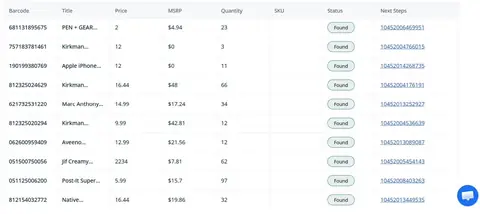
The Import CSV screen. Barcode, Price, Quantity, and SKU are the four columns it expects, but only Barcode is actually required to run the import.
This is genuinely the fastest path for a large shopify product import csv when you already have clean data somewhere else. It's also where I'd push back on people who assume more automation means less oversight. It doesn't. Every barcode still gets matched and shows up on a results table marked "Found" with a link to review it before it touches your live catalog.
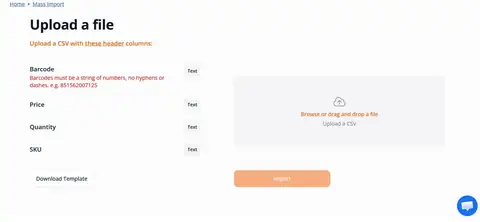
Results after a bulk shopify product import csv. Each row shows price, MSRP, and quantity pulled in, still reviewable before anything publishes.
Where automation stops and you should still be looking
None of this replaces actually looking at what gets created. A default weight is a starting point, not a guarantee it's right for every product in a mixed catalog. Custom AI Instructions shape the writing, they don't catch every factual detail about a specific item. And Auto-Publish being off only helps if you actually go back and check the drafts instead of letting them pile up unreviewed.
The honest version of speeding this up is that automation removes the repetitive typing, not the judgment. You're still the one deciding a price is right, a quantity matches what's on the shelf, and a title reads the way you want it to before it goes live. The settings just mean you're making that decision once per rule instead of once per product.
Four settings worth setting up before you scan anything
Default Weight
Set a number and unit once. It applies to every scan going forward instead of you typing it per product. Leave it blank and Scan2Sell falls back to the barcode's own weight, then an AI estimate.
Custom AI Instructions
A short note like "always use Premium in the title" changes how every future title and description gets written, not just the one you're scanning right now.
Auto-Publish
Off keeps new listings in draft until you review them. On sends them live the moment you hit Create. Most merchants I've talked to keep this off, at least at first.
Product Tags
Tags you set up in advance show up as dropdown options while you're uploading, so you're picking from a list instead of typing the same tag by hand on every product.
Four ways to get products in, pick based on what's in front of you
Scanner Gun or Camera
A Bluetooth scanner or your phone camera for one-off products. Fastest option when you're only adding a handful of items and want to review each one as you go.
Scan Queue
Scan a whole cart or restock delivery back to back, then bulk edit quantity and price across everything at once before it uploads. Built for volume, not one item at a time.
Take Picture
For unbranded or handmade items with nothing to scan. A photo becomes the input instead, and a draft listing still appears for you to check over.
Import CSV
Already have a shopify product csv from a supplier or your own inventory sheet? Upload barcodes using Scan2Sell's csv template instead of scanning anything by hand.
Set your defaults once, scan everything after
Weight, tags, publish rules, and AI instructions all live in one settings screen. Set them up once and every scan after that moves faster.
Try Scan2Sell on the Shopify App Store
FAQ
What is Scan Queue in Scan2Sell?
It's a batch scanning mode. Instead of reviewing and creating one listing at a time, you scan a run of products into a queue first, then bulk edit quantity, price, and weight across all of them before uploading to Shopify. It's built for restock sessions where you're moving through a lot of items back to back.
Does Scan2Sell automatically publish products to my store?
Only if you turn Auto-Publish on in settings. With it off, every new listing sits in draft until you review and publish it yourself. Either way, price, quantity, title, and images stay editable before anything goes live.
Can I set a default weight so I don't have to enter it every time?
Yes. Default Weight is a field in account settings. Set a number and unit once and it applies to every product you scan afterward. If you leave it blank, Scan2Sell uses the weight from the barcode when one is available, and an AI estimate if it isn't.
What's the difference between Scan Queue and Import CSV?
Scan Queue is for when you have the physical products in front of you and are scanning them one after another. Import CSV is for when you don't, you're working from a supplier list or spreadsheet of barcodes instead and want to upload that file directly rather than scan each item by hand.
Do I need to use a specific Shopify CSV template for Import CSV?
Yes, Scan2Sell has its own downloadable csv template with four columns: Barcode, Price, Quantity, and SKU. Barcode is the only one that's required, as a plain string of numbers with no hyphens or dashes. Price, quantity, and SKU can be left blank if you don't have them handy. Using that template instead of a generic Shopify csv export keeps the upload matching correctly.